

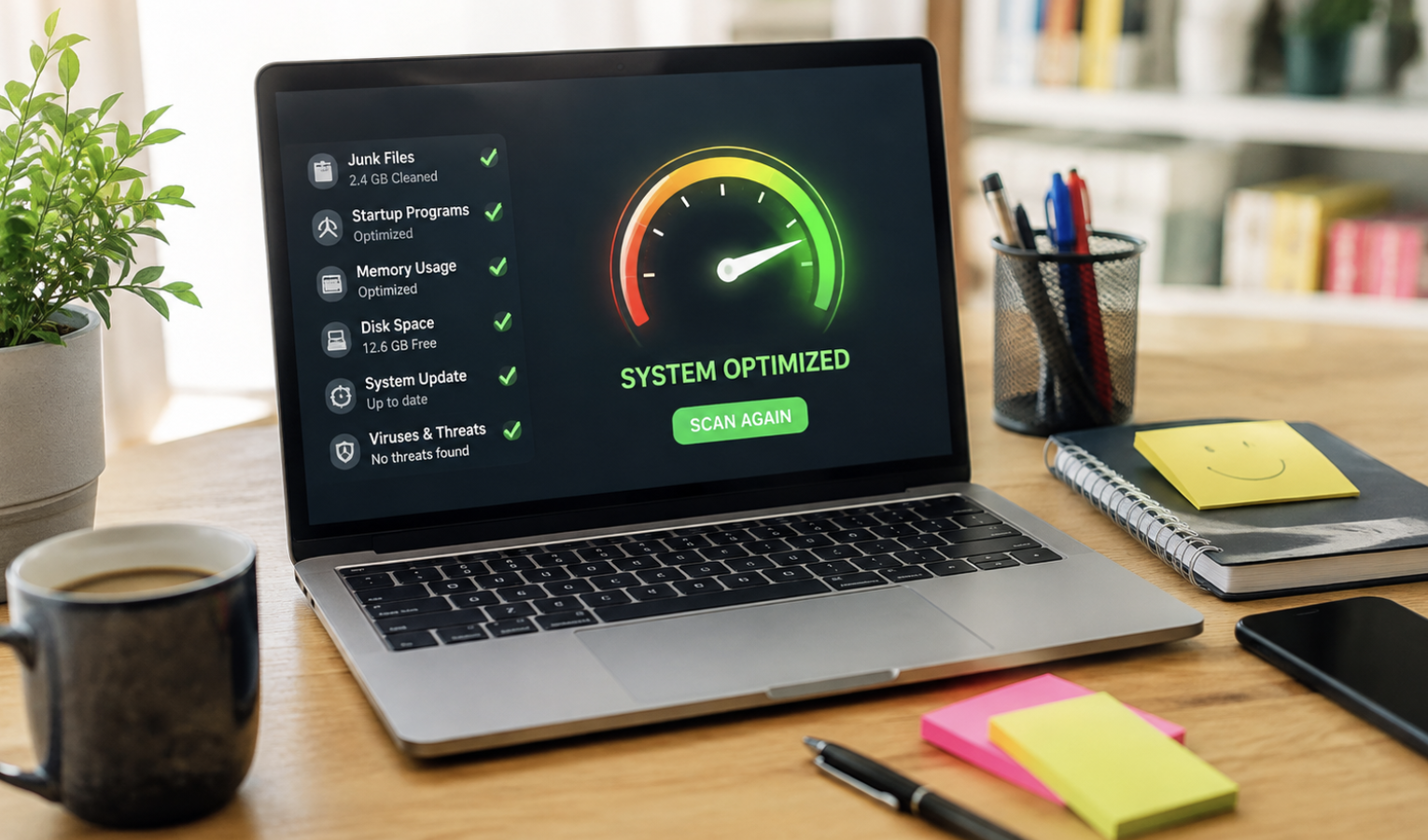
Your laptop used to open apps before you could blink. Now, a simple browser launch feels like an endurance test. Files take forever to open. Websites freeze. Fans suddenly sound like tiny aircraft engines. However, a slow laptop does not automatically mean you need a replacement. In many cases, poor performance comes from unnecessary startup apps, limited storage, excessive browser activity, outdated drivers, overheating, or hidden background processes. Fortunately, you can fix many of these problems without spending hundreds of dollars.
This guide explains practical ways to speed up a slow laptop and restore smoother performance. Moreover, these methods work across many Windows and Mac laptops.
1. Restart Your Laptop Before Trying Complicated Fixes
A restart sounds basic, but it can solve several temporary performance problems. Over time, applications consume memory and leave background processes running. Some programs also fail to release resources correctly after closing. Therefore, restarting gives your system a clean session.
If you usually close the lid instead of restarting, change that habit occasionally. A complete restart can clear temporary memory issues and finish pending system operations. For persistent slowdowns, restart your laptop before investigating deeper problems.
2. Find the Apps Consuming Your Laptop’s Resources
Your laptop may be slow because certain applications are demanding too many resources. On Windows, open Task Manager using Ctrl + Shift + Esc. Then, check the Processes section. Look at CPU, Memory, Disk, and Network usage. Programs consuming unusually high resources deserve attention. Mac users can open Activity Monitor through Spotlight. The same categories can reveal demanding applications.
However, avoid ending processes you do not recognize. Some system processes are essential for normal operation. Instead, close familiar applications that you are not using. This simple step can immediately improve responsiveness.
3. Disable Unnecessary Startup Programs
A laptop can feel painfully slow before you even open your first application. Startup programs often cause this problem. Many applications automatically launch when Windows or macOS starts. Some remain active even when you rarely use them. Windows users can manage these applications through Task Manager’s Startup section. Mac users can review Login Items through System Settings.
Disable unnecessary launchers, communication apps, game clients, and other programs. Nevertheless, keep security software and essential system utilities enabled. A cleaner startup usually means faster boot times and fewer background processes.
4. Free Up Valuable Storage Space
A nearly full storage drive can contribute to sluggish performance. Your operating system needs working space for temporary files, updates, caches, and other operations. Therefore, maintaining reasonable free space is important. Start by removing files you no longer need. Check your Downloads, Videos, Desktop, and Documents folders. Old installers, duplicate photos, and forgotten recordings can consume enormous amounts of space.
Windows includes built-in storage management tools. macOS also provides storage recommendations. Furthermore, empty your recycling or trash folder after deleting unnecessary files. Cloud storage or an external drive can also help move large files away from your main drive.
5. Remove Programs You Never Use
Unused software does more than occupy storage. Some applications install background services, update processes, browser extensions, or startup components. Consequently, unnecessary programs can continue affecting performance long after installation. Review your installed applications and uninstall software you genuinely no longer need.
Avoid removing system components simply because their names look unfamiliar. When uncertain, research the application before uninstalling it. A cleaner software environment is easier to maintain and troubleshoot.
6. Reduce Browser Clutter
For many people, the browser is the biggest source of daily laptop activity. Dozens of open tabs can consume substantial memory. Video-heavy websites can also use significant processing power. Start by closing tabs you no longer need. Next, review your browser extensions. Remove extensions you rarely use or no longer recognize. Also, avoid installing multiple extensions that perform similar functions.
If your browser offers sleeping or memory-saving tabs, enable those features. They can reduce resource usage without forcing you to close everything.
Additionally, clear unnecessary browser data when appropriate. However, avoid deleting important saved passwords without checking your browser settings first.
7. Check Whether Your Laptop Is Overheating
Heat can quietly destroy laptop performance. Modern processors automatically reduce their speed when temperatures become too high. This behavior protects hardware from excessive heat. Therefore, a laptop may become slower after running demanding applications for extended periods. Check whether your laptop feels unusually hot. Also, listen for constantly running fans or sudden performance drops during intensive tasks.
Keep ventilation openings unobstructed. Avoid using the laptop on soft beds, blankets, or cushions that block airflow. A cooling stand can also improve airflow around some laptops. If temperatures remain excessive, internal dust may need professional cleaning.
8. Clean Dust From Air Vents Carefully
Dust buildup can restrict airflow and increase internal temperatures. Older laptops are especially vulnerable to this issue. Before cleaning, shut down the laptop and disconnect its power source. Then, carefully clean accessible vents using appropriate equipment.
Do not force objects into ventilation openings. If you are uncomfortable opening the laptop, consider professional cleaning instead. Regular cleaning can help maintain cooling performance, particularly in dusty environments.
9. Scan for Malware and Unwanted Software
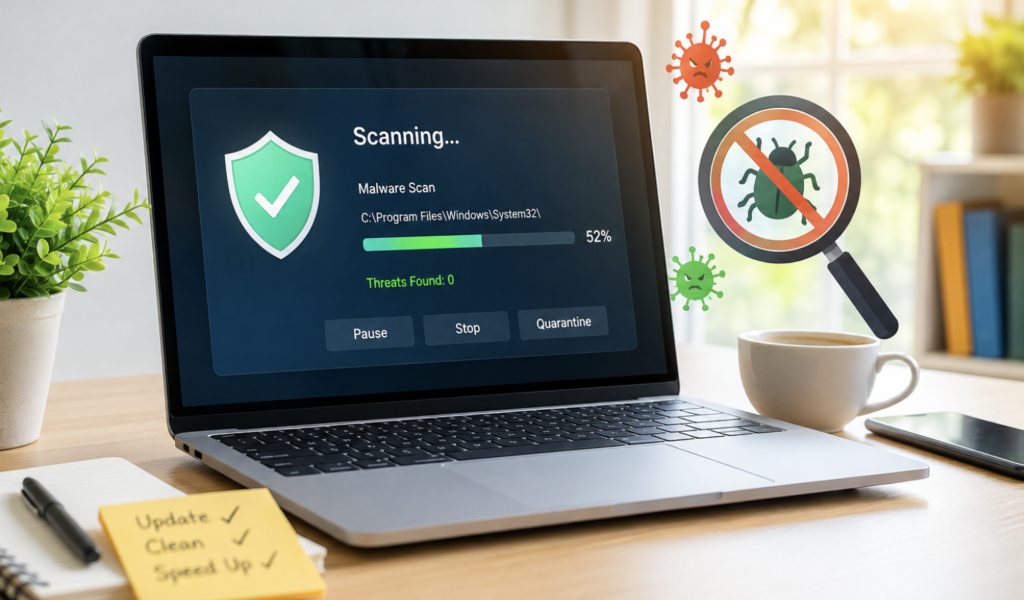
Malware can make a laptop feel unusually slow. Some unwanted programs continuously use CPU resources, memory, network bandwidth, or storage activity. Unexpected advertisements, browser redirects, unfamiliar applications, or changed homepage settings can provide additional warning signs. Run a complete scan using your operating system’s security tools. Keep your security software updated as well.
However, avoid downloading random “PC booster” applications promising instant performance improvements. Some questionable utilities create more problems than they solve. Use reputable security software and trusted download sources.
10. Update Windows, macOS, and Hardware Drivers
Outdated software can create compatibility and performance problems. Operating system updates often contain bug fixes, security improvements, and performance refinements. Therefore, check for available updates regularly. Windows users should also check important hardware drivers. Graphics, chipset, network, and storage-related drivers can influence system behavior.
Mac users generally receive hardware-related improvements through macOS updates. However, do not download drivers from suspicious websites. Always use official manufacturer sources whenever manual driver installation becomes necessary.
11. Turn Down Unnecessary Visual Effects
Modern operating systems include attractive animations and visual effects. These features look polished, but older hardware may struggle with them. If your laptop has limited memory or an older processor, reducing visual effects can make the interface feel more responsive.
Windows provides performance settings that let users reduce animations and other effects. macOS also includes accessibility options that can reduce certain visual movements. The improvement may not transform an old laptop into a new one. Nevertheless, menus and windows can feel quicker afterward.
12. Check Your Power Mode
Your laptop’s power settings can affect performance significantly. Battery-saving modes often reduce processor performance to extend battery life. That tradeoff makes sense when you are away from a charger. However, it can make demanding applications feel slower.
When connected to power, check whether your laptop offers a balanced or performance-oriented mode. Use higher-performance settings when necessary. Still, remember that stronger performance can increase heat, fan noise, and battery consumption.
13. Upgrade From an HDD to an SSD
If your laptop still uses a traditional hard disk drive, an SSD upgrade can deliver a major improvement. Hard drives rely on moving mechanical components. SSDs use flash memory instead. As a result, SSDs generally provide much faster access to files and applications. You may notice improvements during startup, software launches, file transfers, and everyday navigation.
However, not every laptop supports a simple storage upgrade. Check your exact model before purchasing an SSD. Also, back up important files before replacing or cloning a storage drive.
14. Add More RAM If Your Laptop Supports It
Limited RAM can create problems when multitasking. For example, running multiple browser tabs alongside office software, messaging applications, and media tools can consume available memory quickly. When memory becomes insufficient, the operating system may rely more heavily on storage. That process can make the laptop feel significantly slower.
Adding RAM can improve multitasking when the laptop supports memory upgrades. However, many modern thin laptops have memory permanently attached to the motherboard. Therefore, verify upgrade compatibility before purchasing anything.
15. Reduce Cloud Sync and Background Activity
Cloud services are convenient, but synchronization can consume resources. Large folders containing photos, videos, or project files may constantly synchronize in the background. This activity can affect CPU usage, disk activity, network bandwidth, and battery life. Review your cloud storage applications and synchronization settings.
You may be able to pause synchronization temporarily during demanding tasks. You can also exclude folders that do not require constant syncing. This approach keeps important files available while reducing unnecessary background work.
16. Check Your Battery Health
Battery problems can sometimes affect laptop behavior. An aging battery may struggle to provide reliable power. Some laptops respond by limiting performance under certain conditions. Check your laptop’s battery health information if available.
If the battery is severely degraded, replacement may restore normal mobility and reliability. However, battery replacement is not always economical for older machines. Compare the replacement cost with the laptop’s overall condition before spending money.
17. Reset or Reinstall the Operating System as a Last Resort
Sometimes software problems become too complicated to identify individually. A clean operating system installation can remove years of accumulated applications, settings, and unwanted software. However, this should be a last resort. Before resetting your laptop, back up important documents, photos, passwords, licenses, and other essential data.
Make sure you can reinstall programs afterward. A clean installation can provide a noticeable improvement when software clutter has become severe. Still, it will not fix failing hardware.
When Should You Finally Replace Your Laptop?
Software optimization has limits. If your laptop has an aging processor, failing storage, damaged hardware, poor battery life, and insufficient memory, upgrading everything may not make financial sense. The same applies when your laptop no longer receives important security updates.
In that situation, replacement becomes more reasonable. However, do not assume age alone makes a laptop useless. An older machine with an SSD, adequate RAM, clean cooling, and optimized software can remain useful for everyday browsing, writing, studying, and office work.
A Simple Maintenance Routine Can Prevent Future Slowdowns
You do not need to perform every optimization every week. Instead, create a simple maintenance routine. Remove unnecessary files regularly. Review startup applications every few months. Keep your operating system updated. Also, check browser extensions and uninstall software you no longer use.
Keep adequate free storage available. Most importantly, restart your laptop periodically and monitor unusual changes in performance. These small habits can prevent minor issues from becoming major problems.
Final Thoughts
A slow laptop can make ordinary digital tasks unnecessarily frustrating. Fortunately, replacing the entire machine is rarely the first solution you should consider. Start with background applications and startup programs. Then, free storage, remove unwanted software, and clean up your browser. Next, check for malware, overheating, outdated software, and excessive background synchronization.
If the laptop remains slow, investigate RAM and storage upgrades. An SSD can dramatically improve an older computer, while additional RAM can strengthen multitasking. Ultimately, the smartest approach is to identify the actual bottleneck before spending money.
With the right combination of software cleanup, maintenance, cooling, and hardware upgrades, your aging laptop may have plenty of useful life left.
Frequently Asked Questions
1. What is the fastest way to speed up a slow laptop?
Restarting, disabling startup programs, freeing storage, and closing unnecessary background applications are strong first steps.
2. Can deleting files make my laptop faster?
Yes, especially when your storage drive is nearly full and the system lacks sufficient working space.
3. Does restarting a laptop improve performance?
Yes, restarting can clear temporary memory usage and terminate processes that remain unnecessarily active.
4. Can too many browser tabs slow down a laptop?
Yes, numerous tabs can consume substantial memory and processing resources.
5. Is an SSD better than an HDD for an old laptop?
Yes, an SSD usually provides significantly faster startup, application loading, and file access.
6. How much free storage should I keep on my laptop?
Keeping a reasonable portion of your main drive free helps maintain smoother system operation.
7. Can overheating make a laptop slow?
Yes, excessive temperatures can cause processors to reduce their speed to protect the hardware.
8. Should I use PC cleaning software?
Usually, built-in operating system tools are safer and sufficient for routine cleanup.
9. Does adding RAM improve laptop speed?
Additional RAM can significantly improve multitasking when your existing memory is frequently exhausted.
10. When should I replace my laptop instead of upgrading it?
Replacement makes more sense when multiple major components are failing or modern software is no longer supported.
11. Can malware cause laptop performance problems?
Yes, malware can consume processing power, memory, storage activity, and network resources.
12. Will reinstalling Windows make an old laptop faster?
A clean installation can improve software-related slowdowns, but it cannot repair failing hardware.
13. Why does my laptop become slower after getting hot?
High temperatures can trigger processor throttling, which reduces performance to control heat.
14. Can background cloud syncing slow my computer?
Yes, large synchronization tasks can consume processing, storage, and network resources.
15. Is it worth upgrading a six-year-old laptop?
It can be worthwhile if compatible upgrades provide affordable improvements and the hardware remains reliable.