

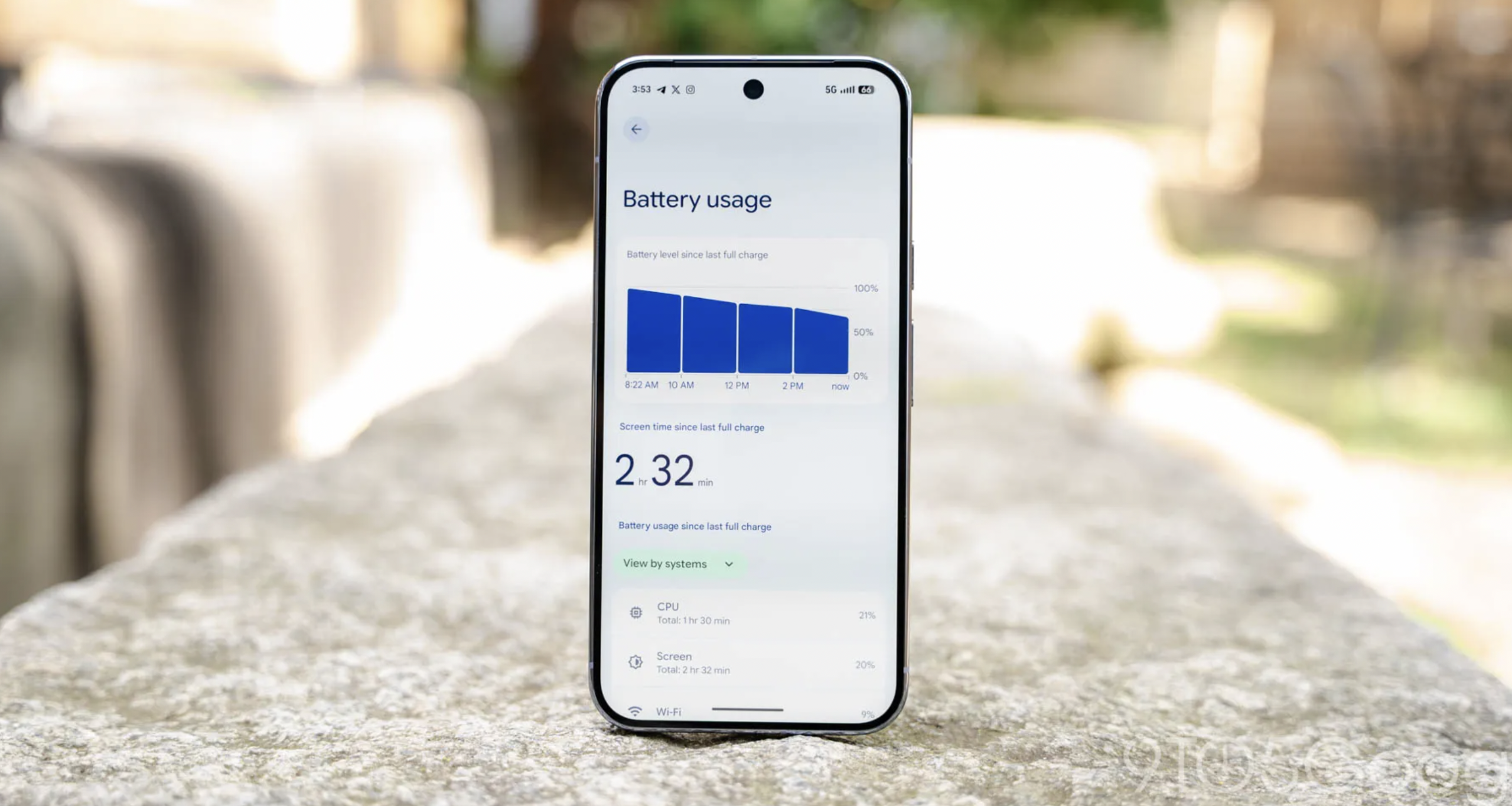
Battery drain after an update is common, and Google says some extra drain right after new software installs is normal. Give the phone a few days before assuming something is broken, but do not ignore a steep, lasting drop.
In this article, we will explore the order in which to try fixes on a Pixel phone, from the safest checks to a factory reset, and how to decide whether to wait or act.
Normal Drain Versus a Real Problem
After an update, a phone does extra background housekeeping: apps refresh and the system relearns your habits. That costs power, so a shorter battery day right away is not automatically a fault.
Google’s Pixel Help page on battery drain says exactly this: some extra drain right after a software update is normal, and if unusual drain continues after a few days, you should contact support. The page was read in November 2026 and Google can change its guidance, so check the current wording.
The page describes Pixel phones only. Reports of drain after past Pixel updates exist in secondary coverage, but they were not verified, so this article does not rely on them.
Wait or Act: A Decision Table
The table below turns Google’s advice into a quick check. The day counts are a simple reading of “a few days”, which Google does not define as a number, so treat them as a rough guide.
| What you see | Suggested move | Why |
| Slightly worse battery for the first day or two | Wait and keep using the phone normally | Google calls some post-update drain normal |
| Still worse after several days | Start the fix order below | Google says drain that continues after a few days is unusual |
| One app tops the battery list | Deal with that app first | A single heavy app is a cheaper fix than a reset |
| Phone is hot, or the back or screen looks swollen | Stop and take it to a service center | A settings change cannot fix a physical battery problem (general guidance) |
| Still bad after every step | Contact Google support | Google lists support as the next move |
Battery Drain After an Update: The Fix Order
The order matters. Start with steps that cost nothing and cannot lose data, and keep the destructive step for the end. The tap paths below are the ones Google gives for Pixel phones. If a label is missing, use the search box in Settings.
| Step | Where to tap, per Google | Risk |
| 1. Run the built-in check | Settings, Battery, Battery diagnostics, “Battery draining too quickly” (Pixel 6 and later) | None |
| 2. Check Adaptive Battery | Keep Adaptive Battery and battery optimization on | Very low |
| 3. Limit heavy apps | Settings, Battery, Battery usage, “View by apps,” open the app, then “Allow background usage” and keep “Optimized” where possible | Low: some apps may notify you later |
| 4. Review app usage | Settings, Apps, App battery usage | None |
| 5. Force stop a problem app | Settings, Apps, See all apps, pick the app, Force stop, OK | Low, but never for essential apps |
| 6. Uninstall a problem app | Touch and hold the app, then Remove App or Uninstall | Medium: you lose the app and maybe its local data |
| 7. Restart | Pixel 6 and later: hold Power and Volume up for a few seconds, then tap Restart | None |
| 8. Check for updates | Settings, System, Software update; and in Play Store, profile icon, Manage apps and devices, Updates available | Low |
| 9. Factory reset | Last resort only | High: erases everything |
Before You Change Anything
Check which app sits at the top of the battery list before touching a setting. If one app causes most of the drain, fixing it is the whole job. Also note your screen brightness and mobile signal, since a bright screen or weak signal can drain a battery with no software fault (general guidance).
Steps 5 to 9 With Care
Force stop only apps you can live without. Google warns against force stopping essential apps, and Google Play services cannot be force stopped. A stopped app may restart itself, so this is a test, not a cure. A restart costs nothing and belongs before any bigger move; on Pixel 5a and earlier, Google says to hold Power for about 30 seconds instead.
A factory reset erases everything, so back up first and use it only if drain continues after the earlier steps and after you have contacted support.
What to Ignore
Apps that promise miracle battery boosts are not on Google’s list and can add background activity of their own (general guidance). Skip a day-one factory reset too, since Google says early extra drain can be normal. Batteries also wear with age, so an older phone may have a shorter day for reasons unrelated to the update. Google’s page links to separate articles for battery health.
If You Do Not Use a Pixel
Other brands have similar settings with different names, such as battery usage lists and background limits. The Samsung page checked for this article had no usable steps, so no Samsung menu paths are given here. Check your phone maker’s support page for exact labels. The logic carries over: wait, find the biggest battery user, limit it, restart, update, and only then reset.
Conclusion
Google says some post-update drain is normal, so give the phone a few days first. If it persists, work through the steps in order and stop once the battery behaves. Back up before any reset. If nothing helps, or the phone runs hot, contact support or a service center.
Frequently Asked Questions
How Long Does Battery Drain After an Update Last?
Google says some extra drain right after a software update is normal, and that you should contact support if unusual drain continues after a few days. It does not give an exact number of days.
Can I Fix Battery Drain Without a Factory Reset?
Yes, and you should try to. Google lists the built-in diagnostic, app limits, force stop, uninstalling problem apps, a restart and update checks before the reset. The reset is described as a last resort.
How Do I Find Which App Is Draining My Pixel Battery?
On a Pixel, open Settings, then Battery, then Battery usage and choose the view by apps. You can also check Settings, Apps, App battery usage.
Should I Force Stop Apps to Save Battery?
Only as a short test on a non-essential app. Google warns against force stopping essential apps, and Google Play services cannot be force stopped. If the app keeps coming back to the top of the list, limit or remove it.
Does This Guide Work for Samsung or Other Phones?
The steps are sourced from Google for Pixel phones. Other brands have similar settings, but the names and menus differ, so use your maker’s own support page for the exact taps.