

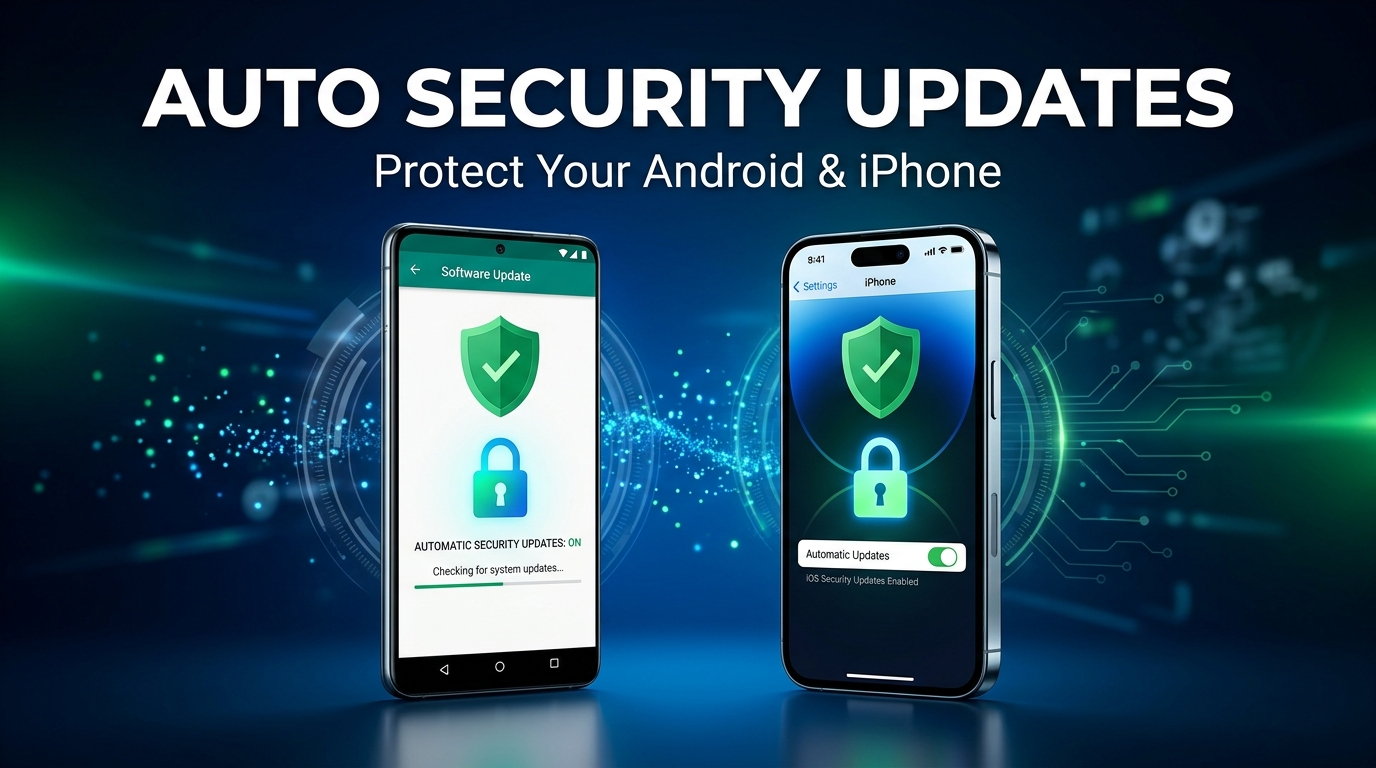
Keeping your phone secure is essential in today’s digital world. Cybercriminals constantly search for weaknesses in mobile operating systems. Fortunately, automatic security updates help protect your device without manual downloads.
Both Android and iPhone offer built-in update settings. Once enabled, your phone can download and install important security improvements. Therefore, you can reduce security risks while keeping your device updated.
This guide explains how to enable automatic security updates on Android and iPhone. It also covers useful settings, troubleshooting tips, and additional security practices.
Why Automatic Security Updates Matter
Security updates fix vulnerabilities that hackers could exploit. They also improve device stability and protect personal information.
For example, an outdated phone might contain weaknesses in its operating system. Attackers could use these weaknesses to access sensitive information.
However, automatic updates help reduce these risks. Your phone can receive important security improvements without constant manual checks.
Moreover, regular updates can improve compatibility with newer applications. As a result, your device stays safer and more reliable.
How to Turn On Automatic Security Updates on Android
Android phones receive updates through Google, device manufacturers, and mobile carriers. The available settings may differ between Samsung, Google Pixel, and other brands.
Follow these steps to enable automatic updates.
Step 1: Open Your Android Settings
First, unlock your Android phone. Open the Settings application from your home screen or app drawer.
Next, scroll down and find the System or Software Update section. Some manufacturers place these options under Security and Privacy.
Step 2: Find the Software Update Settings
Tap System and select Software Updates if available. On Samsung devices, open Settings and select Software Update.
Then, look for options related to automatic downloads or automatic installation.
Step 3: Enable Automatic Updates
Turn on automatic downloading or installation where available. Your phone may offer separate options for system updates and security updates.
Additionally, enable automatic updates for Google Play system components. These updates provide important security improvements.
Step 4: Check Google Play System Updates
Open Settings and navigate to Security and Privacy. Select System and Updates or Google Play system update.
The exact menu name depends on your Android version. If an update appears, follow the instructions to install it.
Step 5: Enable Automatic App Updates
App updates also improve mobile security. Therefore, enable automatic updates through Google Play.
Open Google Play Store and tap your profile picture. Next, select Settings and open Network Preferences.
Choose Auto-update Apps and select your preferred option. You can allow updates over Wi-Fi to manage mobile data usage.
How to Turn On Automatic Security Updates on iPhone
Apple provides automatic update settings through iOS. These settings help install important security improvements with minimal effort.
Follow these steps to enable automatic updates.
Step 1: Open Your iPhone Settings
Unlock your iPhone and open the Settings application. Next, scroll down and tap General.
Step 2: Select Software Update
Under General, tap Software Update. Your iPhone will check its current iOS version.
Now, select Automatic Updates to access available update controls.
Step 3: Enable Automatic iOS Updates
Turn on Download iOS Updates. Also, enable Install iOS Updates.
Consequently, your iPhone can download and install supported updates automatically. However, installation may require charging and a Wi-Fi connection.
Step 4: Enable Security Responses and System Files
Apple offers additional security improvements through security responses and system files.
Find the Security Responses and System Files option. Then, turn on automatic installation.
This setting helps your iPhone receive certain security improvements between regular iOS releases.
Step 5: Enable Automatic App Updates
Open Settings and select Apps, then App Store. On older iOS versions, find App Store directly in Settings.
Turn on App Updates under Automatic Downloads. Therefore, your applications can receive important improvements automatically.
Android vs. iPhone: Automatic Security Update Settings
Both platforms support automatic updates. However, their update systems work differently.
Android offers updates through manufacturers, Google Play, and Google Play system components. Meanwhile, Apple manages iOS updates through its own software ecosystem.
Android menu names also vary between manufacturers. In contrast, iPhone update settings generally follow a consistent layout.
Nevertheless, both platforms allow users to reduce manual update work. Keeping automatic updates enabled provides an important security advantage.
What to Do If Automatic Updates Are Not Working
Sometimes, automatic updates may not install successfully. Fortunately, several simple checks can resolve common problems.
Check Your Internet Connection
To begin, make sure your phone is connected to a stable Wi-Fi connection. Unstable internet connections can interrupt update downloads.
Keep Enough Storage Space Available
Updates require available storage. Therefore, remove unnecessary files and unused applications when space becomes limited.
Charge Your Phone
Many updates require sufficient battery power. Connect your device to its charger before installing major updates.
Restart Your Device
A simple restart can resolve temporary software problems. After restarting, check the update settings again.
Check Device Compatibility
Older phones may stop receiving major operating system updates. However, some devices continue receiving security patches separately.
Visit your manufacturer’s support website to check update eligibility.
Additional Tips to Keep Your Phone Secure
Automatic updates provide important protection. However, you should follow other security practices too.
- Use a strong screen lock or biometric authentication.
- Download applications from trusted stores.
- Avoid suspicious links and unknown attachments.
- Enable device-finding features.
- Review application permissions regularly.
- Use two-factor authentication for important accounts.
- Back up important files regularly.
Additionally, avoid disabling security features without a clear reason. These small habits can significantly improve your phone’s protection.
Final Thoughts
Turning on automatic security updates is a simple way to protect your Android or iPhone. It helps your device receive important security improvements with less manual effort.
Android users should check system updates and Google Play settings. Meanwhile, iPhone users should enable automatic iOS updates and security responses.
Finally, keep your applications updated and follow basic security practices. A properly maintained phone provides better protection against emerging digital threats.