

Most of us created our main online accounts years ago and have rarely looked at the privacy choices behind them. Those choices decide what is recorded about you, who can see your posts, and which apps can reach your data.
In this article we will explore how to run a calm, structured privacy checkup on a Google account and on social media profiles, which settings matter most, and how to turn the review into a habit that takes less than an hour.
Why a privacy checkup belongs on your calendar
Privacy settings are not a one-time decision. Companies add features, rename menus and change defaults, so a setup that felt right three years ago may now share more than you intended. Meanwhile your own life changes: you switch jobs, move house, stop using an app, or start posting photos of your children. A checkup is simply the habit of lining the settings up with how you live today.
The review also reduces the damage if something goes wrong. If an old app connected to your account is later compromised, the less it can reach, the less an attacker gains. If a stranger searches for your name, the profile details you left public are the first thing they find. Small clean-ups made in calm conditions are far easier than emergency repairs after a problem appears.
It helps to set expectations before you begin. You will not reach perfect privacy, and you do not need to. The goal is to make deliberate choices instead of living with defaults chosen by a company whose business may depend on data. Some features, such as personalized maps or suggested replies, work better when they have information about you, so each setting is a trade between convenience and exposure that only you can weigh.
Prepare before you start. Set aside forty-five minutes, use a laptop or desktop if you can because the menus are easier to read, and sign in to the account you want to review. Keep a notepad open to record anything you change, so you can reverse it if a feature you liked stops working. Finally, make sure you know your recovery details, because some steps will ask you to confirm your identity.
Start with the Google account overview
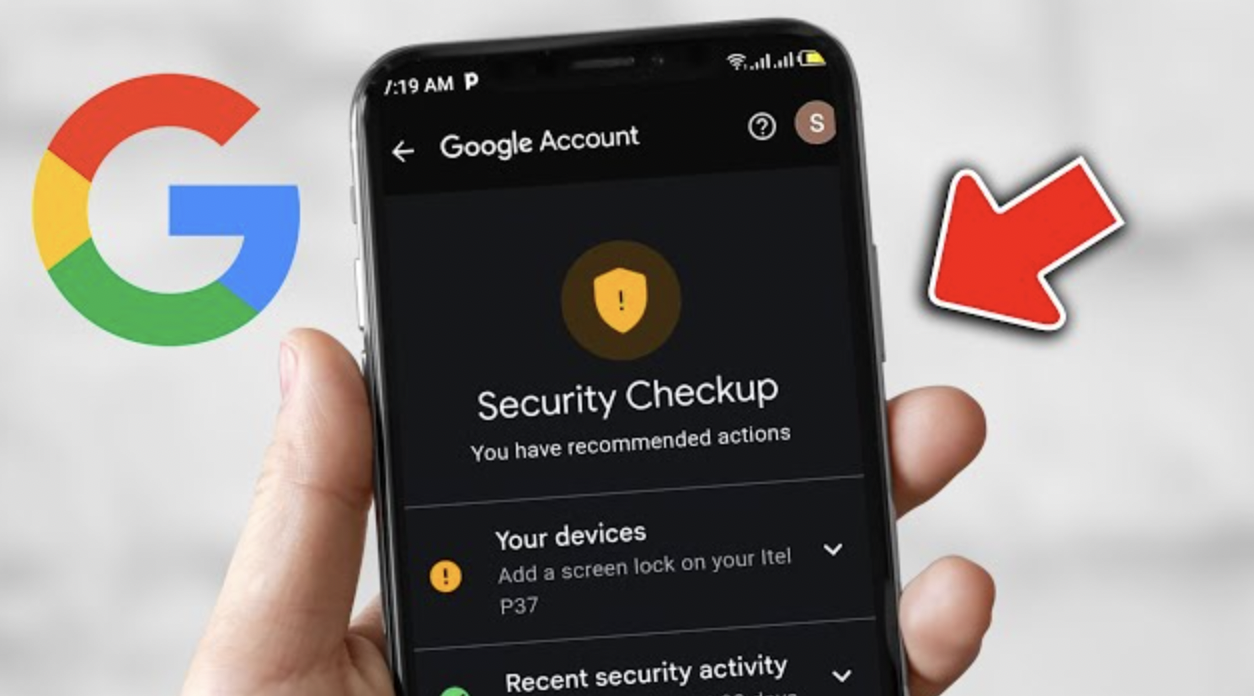
Open your Google account management page and look for the section usually called Data and privacy, along with the guided tools often named Privacy Checkup and Security Checkup. The names and layout change from time to time and differ by country and device, so treat the wording here as a guide rather than a fixed map. The guided tools walk you through the main controls one screen at a time, which makes them a sensible starting point if you feel overwhelmed.
Begin with the personal information page. Review the name, birthday, phone number, email addresses and any other details listed, and look at who can see each item. Google lets you choose whether some details are visible to others or only to you, and many people discover that a phone number or birthday is shared more widely than they remembered. Remove any detail you do not need, and set the rest to private unless you have a clear reason for it to be seen.
Many people also overlook the settings inside individual services. Photo libraries, video platforms and mapping tools often have their own sharing options, such as shared albums, public playlists or reviews that carry your name. Open each service you use often and look for sharing and visibility controls. A shared album link that you created for a holiday five years ago may still be open to anyone who holds the link.
Next, scroll to the summary of the services and data connected to the account. This overview usually lists the products you have used, such as email, maps, video, photos and cloud storage, and it gives a sense of how much a single sign-in covers. Do not try to change everything at once. Instead, note which services you rely on daily and which you have forgotten, because the forgotten ones are the best candidates for later clean-up.
Finally, look for the option to download a copy of your data. Most large platforms offer an export tool, and running one gives you a concrete picture of what is stored. It also protects you before you delete anything, since you can keep a backup of photos, documents or messages you care about. Store the export on an encrypted drive or a trusted private device, never in a shared folder.
Activity controls and the data Google keeps
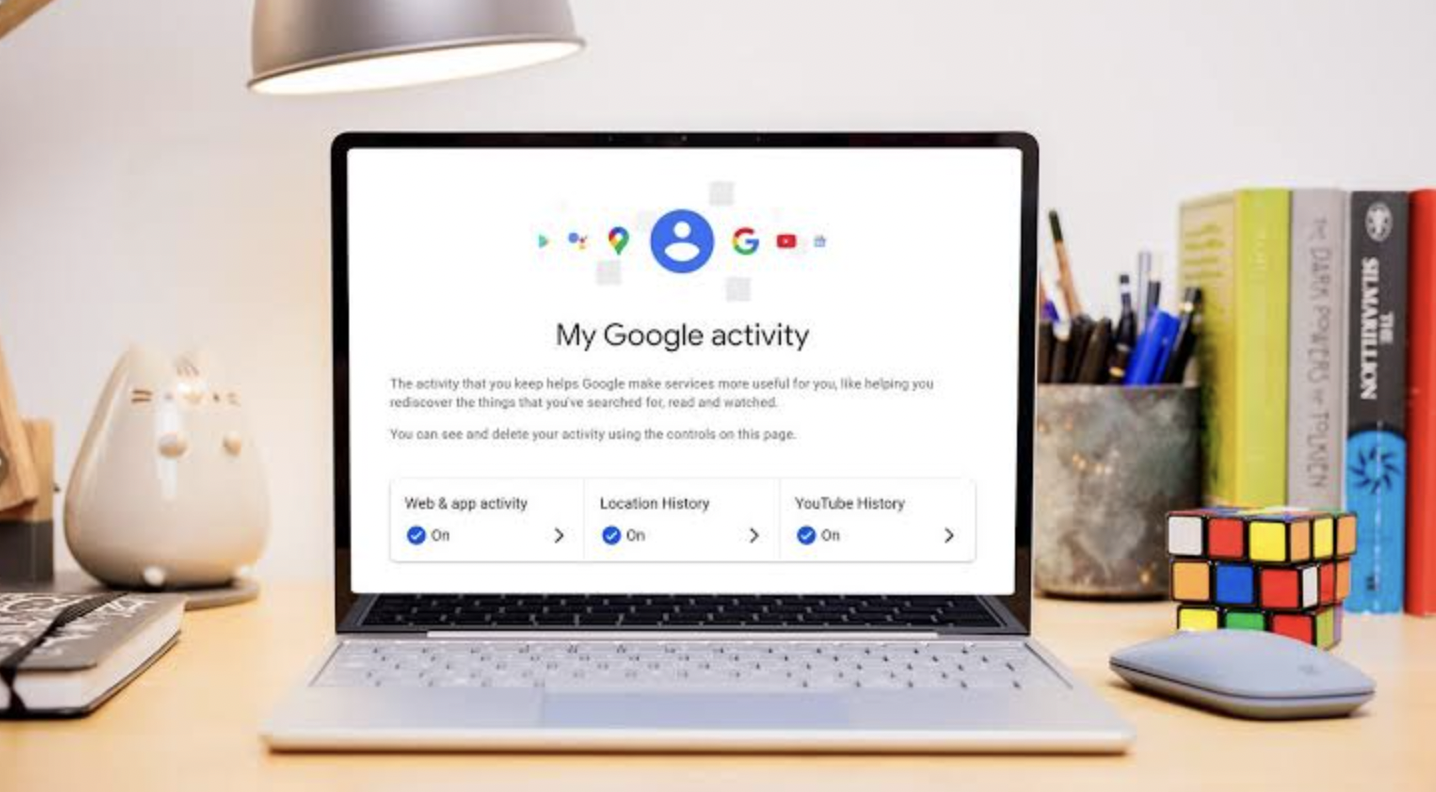
The activity controls are the heart of a Google checkup. They typically include a setting for web and app activity, one for location history or timeline, and one for video watching and search history. Each can be paused, and each usually offers an auto-delete choice that removes older records on a schedule. Common choices are three months, eighteen months or thirty-six months, though the exact options can vary.
Think about what each setting does for you. Web and app activity helps personalize search results and suggestions, and it can store searches and activity from apps that use the account. Location history builds a private record of places you have visited, which powers features such as commute estimates and photo grouping by place. Video history shapes recommendations. If you value those features, keep them on but add an auto-delete limit, so the record does not grow forever.
A sensible approach is to match the setting to the benefit. If you never use the timeline feature, pause it and delete the existing history. If you like personalized recommendations but see no reason to keep a five-year archive, choose the shortest auto-delete period you can tolerate. If you share a device with family members, consider whether any of these records might reveal something you would prefer to keep private, such as a gift search or a medical appointment. The table below summarizes the main controls and a cautious way to treat each one. It is a starting point, not a rule. Your own habits should decide the final choice.
| Control | What it does | Cautious approach |
| Web and app activity | Stores searches and activity to personalize results | Keep on only if useful, add auto-delete |
| Location history or timeline | Records places you visit over time | Pause if unused, otherwise short retention |
| Video and search history | Shapes recommendations | Short auto-delete, clear when needed |
| Ad personalization | Uses your data to tailor ads | Turn off or limit topics |
| Third-party access | Lets other apps use your account | Remove anything unrecognized |
After changing these settings, remember that deleting history inside the account does not erase everything that exists elsewhere. Records you have already shared with other people or services remain with them. Your changes control what the account keeps from now on and what it holds today, which is still a useful reduction.
Ads personalization and third-party access
Advertising is how many free services pay their bills, so ad settings deserve attention. Google offers a hub that shows the topics and brands it thinks interest you, and it lets you switch personalization off or remove individual topics. Turning personalization off does not remove ads. It means the ads you see rely less on your activity and more on the page you are viewing, and many people find that an acceptable bargain.
Read the interest list with a critical eye. Inaccurate guesses are common, and sensitive categories can appear that you would rather not have attached to your profile. Remove anything you dislike, and consider switching off personalization if the list feels invasive. Keep in mind that other advertising systems exist outside your account, so this setting reduces one stream of tracking rather than all of it.
Third-party access is where many people find the biggest surprises. Over the years you may have used the option to sign in with your Google account on other sites, or granted a calendar tool, a photo editor or a game permission to read parts of your account. Find the page that lists apps and services with access, and go through it slowly. For each entry ask whether you still use it, whether you recognize it, and whether the permission it holds is larger than the job it does.
Remove any app you no longer use or cannot identify. Removing access ends the connection from your account side, although the other service may keep data it already collected, so consider also deleting your account there if you are finished with it. For apps you keep, narrow the permissions where the option exists. A scheduling tool, for example, may need to see your calendar but has no reason to read your email.
Security basics that protect privacy
Privacy and security are tightly linked, because a locked-down profile means little if a stranger can sign in as you. Open the security checkup and review the devices that are signed in. Sign out of any phone, tablet or browser you do not recognize or no longer own, and then change your password if anything looks odd. A long, unique passphrase stored in a reputable password manager is the standard recommendation from security organizations.
Turn on two-step verification if it is not already active. The strongest common methods are passkeys and hardware security keys, followed by prompts from an authenticator app, while text messages are better than nothing but easier to intercept through a technique called SIM swapping. Save the backup codes in a safe place, because losing your second factor without them can lock you out. Check that your recovery phone number and recovery email are current, since attackers often target outdated recovery routes.
Look at the sign-in methods and any saved passwords too. Browsers and accounts can store passwords, and the built-in password checker can warn you about reused, weak or exposed ones. Fix the worst offenders first, starting with email, banking and any account that can reset others. Remember that your main email is the master key, because most services send reset links there.
Browser choices matter here too. The browser you use to sign in stores cookies, history and extensions that can see the pages you visit. Review the extensions installed, remove any you do not use, and check the permissions of those you keep, because a tool that can read every page you open is a powerful thing to hand over. Private browsing windows and tracking protection settings add some protection, though they do not make you invisible to the sites you visit or to your internet provider.
Finally, consider an inactive account plan. Google and several other companies let you name a trusted contact and set a waiting period after which your data is shared or the account removed. That choice is deeply personal, but making it deliberately is better than leaving a dormant account open indefinitely. Treat it as part of the same review, not a separate project.
Reviewing Facebook, Instagram and similar social platforms
Social media settings differ from platform to platform, but the structure is similar. Look for a privacy section that controls who sees your posts, who can send friend requests or messages, how people can find you, and what happens with tags. Many platforms also offer a privacy checkup tool that walks through these items. Names and layouts change often, so use the search box in the settings menu if you cannot find a control.
Start with audience. Decide whether your account should be public, limited to friends or followers, or private. A public profile suits creators and businesses, while most personal accounts are safer when limited to people you know. Then look for a tool that changes the audience of old posts in bulk, because many people have years of material still visible from an earlier, more open era.
Move on to discoverability. You can often decide whether people can find you by phone number or email address, and whether search engines may link to your profile. Turning these off makes it harder for strangers to match your name with your accounts. Next, review profile fields such as workplace, hometown, relationship status and birthday, and hide or delete those that do not serve a purpose.
Keep a simple routine for the smaller details as well. Check your profile photo, because it is often visible even on private accounts, and decide whether it reveals more than you want, such as a street sign or a workplace badge. Review the short biography and links you list, since these are easy to scrape and combine with other public information. Anything that points to your home, your children or your daily routine is worth removing.
Tagging deserves special care. Turn on the option to review tags before they appear on your profile, so you decide what others attach to your name. Check who can see posts you are tagged in, since a friend with a public profile may expose photos you thought were limited. Finally, review messaging settings, because limiting direct messages from strangers reduces spam and scam attempts.
Social apps request many permissions on a phone, and these deserve their own review. On a phone, open the privacy section of the system settings and look at which apps can use your location, contacts, camera, microphone and photos. Most systems let you choose between always, only while using the app, or never, and the middle option is the best default for most apps. A social app rarely needs to know where you are when it is closed.
Contact syncing is another quiet exposure. If you allowed an app to upload your address book, it holds names and numbers of people who never agreed to share them. Check whether the platform lets you turn off continuous syncing and delete previously uploaded contacts. Also review whether posts automatically include your location, and turn that off unless you want it, as photos can carry hidden location data that others can read.
Look at how the platform uses your activity for advertising. Many have an ad preferences page where you can limit the use of data from partner websites and apps, hide certain topics, and see which advertisers have your information. Some also let you download or review the data they hold. Exploring these tools takes only a few minutes and often reveals how much is collected from outside the app itself.
If you use the same login for several services, remember that revoking one app can affect others. A table of your accounts, even a simple one in a notebook, helps you track which sign-ins connect to which services. Treat the table as a living record and update it each time you review.
| Area to check | Where to look | Typical safe choice |
| Post audience | Privacy or audience settings | Friends or followers only |
| Old posts | Limit past posts tool | Restrict to friends |
| Tags | Profile and tagging settings | Review before display |
| Search visibility | Discoverability settings | Disable lookup by phone or email |
| App permissions | Phone privacy settings | While using the app only |
| Ad data | Ad preferences page | Limit partner data |
Cleaning up old accounts, apps and tagged content
A checkup is incomplete until you remove the clutter, because every unused account is another place your data can leak. Make a list of the services you have signed up for over the years. Your email search is a good source: look for welcome messages, receipts and password reset notices. For each one, decide whether to keep it, tighten it or close it.
When you close an account, check what the service says about deletion. Some remove data quickly, while others keep it for a period or retain certain records for legal or business reasons, and the rules differ by country. If you live in a region with data protection laws, you may have the right to ask a company to delete or send you your data, and the company usually explains how in its privacy policy. Keep a record of your request in case you need to follow up.
On social platforms, spend a little time on your own history. Scroll through old posts, comments and photos, and delete those that no longer reflect you or that reveal details such as a home address, a child’s school or a workplace. Check groups and pages you joined long ago, since membership lists can be public. Also review who is in your friend or follower list, and remove people you no longer know.
Consider a different sort of test as well: search for your own name in a search engine while signed out. Note which profiles, photos and old posts appear, and compare them with what you intended to be public. If something sensitive shows up, visit the source site and look for removal or privacy tools, and use the search engine’s own request forms for outdated or personal results where they exist. The rules and the outcomes vary by country, so be patient and keep a record of each request.
Do not forget connected apps on the social side. Platforms keep a list of websites and apps that you logged into with your social account, and they often hold permissions you forgot. Remove those you do not use and note which ones you keep. This is the same exercise as the Google review, and doing both in one sitting makes the pattern easier to remember.
Making the review a habit
The final step is turning a one-time clean-up into a routine. Put a reminder in your calendar twice a year, perhaps when clocks change or at the start of each season. Each time, run the guided checkup tools, scan the list of connected apps, glance at signed-in devices and look for any new settings that appeared. Because you already know where things are, the second review is much faster than the first.
Add triggers for extra checks. Review your accounts after a data breach notification, after buying or selling a phone, after a relationship or job change, and when a platform announces a major policy update. Policy changes often come with new default settings that you have to opt out of, so read the summary of changes rather than clicking accept at once. If something looks unclear, check the platform’s help pages or an independent consumer organization.
Share what you learn. Family members, especially those who are less confident with technology, often benefit from a short walk-through of the same steps. Sit with them, let them do the tapping, and explain each choice in plain language. Children and teenagers need age-appropriate settings and honest conversations about what is safe to share, and many platforms offer family tools for that purpose.
Know when to ask for help. If you suspect someone has accessed your account, you see sign-ins from unfamiliar places, or you are dealing with harassment, follow the platform’s account recovery and reporting process and consider contacting the relevant consumer protection or cybercrime authority in your country. For legal or safety concerns, speak with a qualified professional. This article offers general information and cannot replace advice tailored to your situation.
Conclusion
If the whole list feels like too much, begin with a short sequence that delivers the biggest benefit in the least time. First, secure the account that controls the others, usually your main email, with a strong unique passphrase and two-step verification. Second, open the list of apps and services connected to your Google account and remove the ones you do not recognize. Third, set auto-delete for your activity history and pause any record you never use.
Next, move to the social platforms you use most. Switch the account to the narrowest audience you are comfortable with, turn on tag review, and limit old posts in one pass. Then check phone permissions for location and contacts, and trim anything that is set to always. Finish by writing the date in your calendar for your next review, so the effort does not fade.
Keep the changes proportionate to the risk. Someone who shares a home computer with others, or who works in a public-facing job, has more reason to tighten settings than a person who rarely posts. Think about who might want information about you, from advertisers and data brokers to scammers and former acquaintances, and let that picture guide how strict you become.
Do not aim for perfection on the first attempt. A partial checkup that you repeat is worth more than a perfect one you do once and never touch again. Keep notes on what you changed and why, accept that some features may behave differently afterward, and adjust if a setting causes more trouble than it prevents. Over a few cycles, you will build a clear sense of what you share and why.