

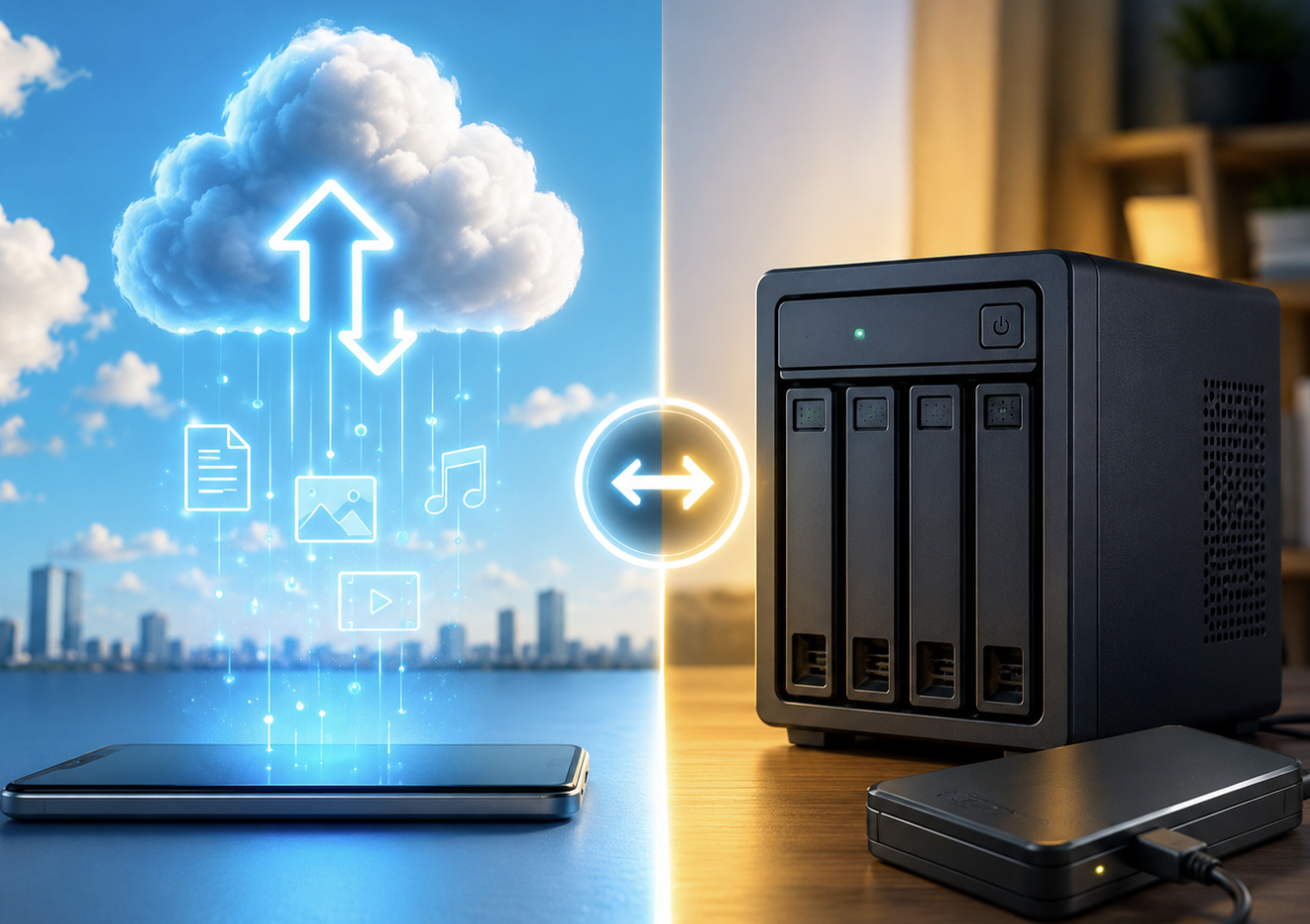
Your most important files may be closer than you think, or thousands of miles away. Every photo, document, video, project, and business file needs a reliable place to live. However, choosing where to store that data can affect accessibility, performance, security, cost, and recovery. That is where cloud storage and local storage enter the picture. At first glance, the difference seems simple. Cloud storage keeps files on remote servers, while local storage keeps them on physical devices. Yet, the real comparison goes much deeper. Cloud platforms can provide flexible access, synchronization, collaboration, and scalable capacity. Meanwhile, local drives can deliver fast performance, offline access, and direct physical control.
Therefore, choosing the right approach requires more than comparing storage capacity. You also need to consider internet reliability, backup strategies, privacy, long-term costs, device performance, and potential data loss.
This guide explores the biggest differences between cloud and local storage. It also reveals why a hybrid approach may be the smartest solution for many users.
What Is Cloud Storage and Why Has It Become So Popular?
Cloud storage allows you to save digital information on infrastructure operated by a third-party provider. Instead of keeping every file on your computer, you upload information through an internet connection. The provider then stores that data inside professionally managed data centers. You can usually access your files through a web browser, desktop application, or mobile application.
Furthermore, cloud platforms often synchronize information between multiple devices. Consequently, you can work with the same files from a laptop, smartphone, tablet, or another authorized computer. Cloud storage can handle many types of information, including documents, photographs, videos, backups, databases, and application files.
Its popularity comes largely from convenience. You do not need to carry a physical drive everywhere. Instead, your account can provide access wherever a compatible connection exists.
How Cloud Storage Actually Works
Cloud storage relies on networks, servers, software, and data centers working together. When you upload a file, your device sends the data to the provider’s infrastructure. The system processes and stores the information according to the provider’s architecture and policies. Many providers use redundancy to reduce the impact of individual hardware failures.
For example, a provider may maintain multiple copies or distribute information across different storage systems. However, redundancy does not mean your files are completely protected from every threat.
Account compromise, accidental deletion, ransomware, synchronization mistakes, and incorrect permissions can still create problems. Therefore, cloud storage should complement a proper backup strategy rather than replace one automatically.
What Makes Local Storage Different?
Local storage keeps your data on hardware that you physically own or directly control. Common examples include internal SSDs, hard drives, USB drives, memory cards, external SSDs, and network-attached storage systems. When you save a video directly to your computer’s SSD, that file exists locally. You can normally open it without an internet connection.
Moreover, local storage can deliver excellent performance because your computer communicates directly with the storage device. This advantage becomes especially important when handling large files or demanding applications. Video editors, gamers, developers, designers, and other professionals often benefit from fast local storage.
Cloud Storage vs. Local Storage: Where the Real Difference Appears
The biggest distinction involves control, accessibility, performance, and responsibility. Cloud storage shifts much of the physical infrastructure responsibility to a provider. You gain remote accessibility and easier synchronization in return. Local storage gives you direct control over the hardware. However, you also become responsible for protecting, maintaining, replacing, and backing up that hardware.
Cloud storage generally works best for people who move between devices. It also suits teams that frequently share and update files. Local storage can be better for users who need high-speed access without depending on internet connectivity.
Therefore, neither option automatically wins. The better solution depends on the type of data, workload, budget, and risk level involved.
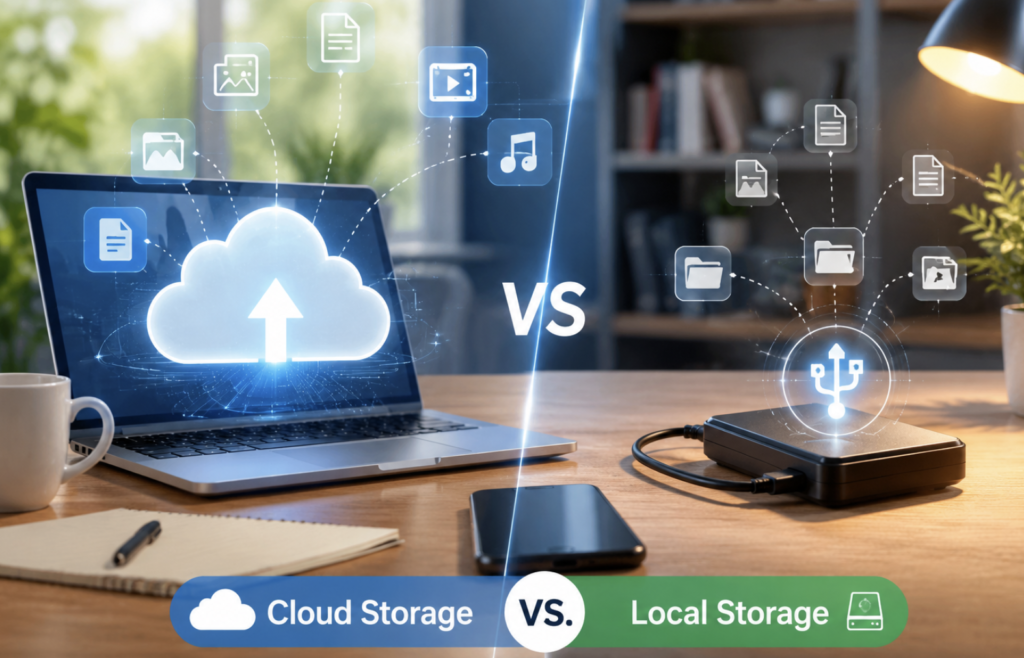
Cloud Storage Makes Multi-Device Access Easier
One major advantage of cloud storage involves accessibility. Imagine starting a presentation on your desktop before leaving home. Later, you need to review it using your smartphone. A synchronized cloud folder can make that transition simple.
Likewise, remote employees can access shared documents without transferring files manually between computers. Students can also keep notes, assignments, and study materials available across multiple devices.
However, online access depends on account permissions, service availability, and connectivity. Some platforms provide offline synchronization, which allows selected files to remain accessible without an active connection. That feature can reduce the inconvenience caused by temporary internet outages.
Local Storage Can Deliver Superior Performance
Cloud storage offers convenience, but local storage often wins when speed matters most. A modern NVMe SSD can process large amounts of data extremely quickly. Therefore, demanding workloads can benefit significantly from local storage. For example, video editing applications may need to read and write huge media files continuously. Similarly, game installations, development environments, virtual machines, and large databases can benefit from fast local drives.
Cloud-based workflows can still perform well. However, performance depends partly on internet speed, latency, network congestion, and provider infrastructure. Consequently, professionals often keep active project files locally while using cloud platforms for synchronization or backup.
Cloud Storage Offers Flexible Capacity
Storage requirements rarely remain constant. A photographer may begin with hundreds of gigabytes. Later, thousands of high-resolution images could require several terabytes. Businesses face similar challenges as their customer records, media assets, databases, and documents grow. Cloud storage can simplify expansion because users can often upgrade their storage plans. Local storage requires a different approach.
You may need to purchase another SSD, install a larger drive, add an external device, or build a dedicated storage system. Although local hardware can provide excellent long-term value, expanding capacity requires planning.
Local Storage Provides Greater Physical Control
Cloud storage places physical infrastructure in someone else’s facilities. That arrangement can be convenient, but some users prefer direct ownership. With local storage, you know exactly where the hardware sits. You can control physical access and determine how the system connects to other devices. This approach can matter for organizations handling sensitive information or operating under specific internal requirements.
However, physical control also creates responsibility. You must protect the hardware against theft, damage, unauthorized access, hardware failure, and environmental risks. Therefore, physical ownership does not automatically equal better security.
Which Option Provides Better Data Security?
Security depends heavily on implementation. Cloud providers can invest heavily in encryption, monitoring, authentication systems, physical security, and infrastructure protection. However, users still need to protect their accounts. A stolen password, phishing attack, exposed recovery method, or incorrectly shared folder can create serious risks. Local storage has different vulnerabilities.
A compromised computer can expose files stored on connected drives. Additionally, stolen laptops and infected external drives can put information at risk.
For better protection, use strong unique passwords and multi-factor authentication. Keep operating systems updated and limit unnecessary access permissions. Most importantly, maintain independent backups of critical data.
Why Cloud Synchronization Is Not the Same as Backup
This distinction is frequently misunderstood. Synchronization keeps files consistent between locations or devices. Backup creates a separate copy that can help recover information after a damaging event. Suppose ransomware encrypts files inside a synchronized folder. Depending on the service and configuration, those encrypted changes could synchronize elsewhere.
Similarly, accidentally deleting a synchronized file can remove it across connected devices. Therefore, synchronization alone should not become your only recovery method. A stronger strategy maintains independent backup copies with appropriate version history and recovery options.
Local Storage Also Needs a Backup Strategy
Keeping files on a computer does not make them safe. Hard drives can fail. SSDs can malfunction. Laptops can disappear. External drives can become corrupted. Natural disasters can also destroy physical equipment. If important information exists on only one device, that device becomes a single point of failure.
A separate backup reduces this risk. For especially valuable information, consider maintaining more than one backup location. An offline copy can also provide additional protection against certain cyber threats.
The Hidden Cost of Cloud Storage
Cloud storage often uses recurring subscriptions. At first, a monthly fee may appear inexpensive. However, long-term costs can become significant as storage requirements increase. Businesses may also pay for additional users, advanced features, higher capacity, or enhanced management capabilities.
Before choosing a provider, examine the complete pricing structure. Check storage limits, data-transfer policies, recovery features, account requirements, and cancellation terms. That evaluation can prevent unpleasant surprises later.
The Hidden Cost of Local Storage
Local storage can appear cheaper because you make a hardware purchase instead of paying a monthly subscription. However, the total cost includes more than the initial drive. You may eventually need replacement hardware, backup drives, additional capacity, maintenance, recovery services, or security equipment.
Businesses may also require dedicated storage servers and technical staff. Therefore, compare the total cost of ownership instead of comparing only purchase prices.
Cloud Storage for Businesses and Remote Teams
Cloud storage can transform collaboration for distributed teams. Employees can access shared files without constantly emailing attachments or moving USB drives between locations. Teams can also use permissions to control who can view or edit specific information. Version history may help users recover earlier file versions after unwanted changes.
Furthermore, centralized access can simplify collaboration across different offices and time zones. However, businesses should carefully manage user permissions and account security. Employee departures should also trigger access reviews and account deactivation procedures.
Local Storage for High-Performance Workloads
Some workloads benefit strongly from local infrastructure. Video production, animation, 3D rendering, software development, gaming, scientific workloads, and large datasets can generate heavy storage activity. Local SSDs can reduce latency and provide consistent performance.
Network-attached storage can add another useful layer by allowing multiple local devices to access shared files. Therefore, businesses do not necessarily need to choose between personal computers and public cloud platforms. They can build storage environments around their actual workloads.
Privacy Considerations You Should Not Ignore
Privacy deserves attention regardless of storage type. Cloud services require users to understand how providers handle information and account data. Read privacy policies and understand available security controls before uploading sensitive files. Likewise, local storage requires physical and digital protection.
Encrypting sensitive local drives can reduce exposure if a device is lost or stolen. Access controls can also prevent unauthorized users from opening confidential files. Ultimately, privacy depends on technology, configuration, user behavior, and organizational policies.
A Hybrid Storage Strategy Can Offer the Best Balance
For many users, the smartest approach combines cloud and local storage. Keep frequently accessed files on a fast local SSD. Synchronize selected files with a trusted cloud platform. Then, maintain an independent backup for information that would be difficult to replace. This strategy combines several useful advantages.
Local storage provides speed and offline access. Cloud storage provides remote accessibility and synchronization. Independent backups provide another recovery layer. As a result, one failure does not necessarily destroy every copy of your information.
How to Choose the Right Storage Strategy
Start by identifying the type of information you need to store. Then consider how frequently you access those files. Next, evaluate whether you need remote access or collaboration. You should also consider the size of your data and expected future growth.
Afterward, examine your internet reliability and budget. Finally, evaluate how much responsibility you want for hardware maintenance and backup management.
If speed and offline access dominate, local storage may be preferable. If accessibility and collaboration matter most, cloud storage may provide greater convenience. If reliability matters most, combining multiple approaches is usually more practical.
Practical Tips for Protecting Stored Data
Regardless of your preferred storage method, follow several basic practices. Keep important software and operating systems updated. Use strong passwords and enable multi-factor authentication whenever available. Avoid storing irreplaceable information in only one location. Test your backups periodically instead of assuming they work. Keep sensitive information encrypted where appropriate.
Review cloud-sharing permissions regularly. Replace aging storage hardware before failure becomes likely. Finally, maintain a recovery plan for your most important files.
Conclusion
Cloud storage and local storage are not competing technologies that require one universal winner. Instead, they solve different problems. Cloud storage excels at accessibility, collaboration, synchronization, and flexible expansion. Local storage delivers speed, offline availability, and direct physical control. However, both approaches have risks. Cloud accounts can face cyber threats, service interruptions, and recurring costs. Local devices can suffer hardware failures, theft, physical damage, and limited remote accessibility.
Therefore, a hybrid strategy often provides the strongest overall balance. Keep active workloads on fast local storage, synchronize important files through the cloud, and maintain independent backups. That approach gives you convenience without relying entirely on one storage method.
Ultimately, your data deserves more than a convenient storage location. It deserves a strategy designed for access, performance, privacy, and recovery.
Frequently Asked Questions
1. Is cloud storage safer than local storage?
Cloud storage can be highly secure, but safety depends on configuration, account protection, encryption, and backup practices.
2. Can cloud storage work without internet access?
Some services support offline files, but fully cloud-based access generally requires an internet connection.
3. Is local storage faster than cloud storage?
Local SSD storage can provide faster access because it avoids internet latency and network limitations.
4. Does cloud storage automatically back up my files?
Not always, because synchronization and backup serve different purposes.
5. Can local storage fail suddenly?
Yes, hard drives, SSDs, and other storage devices can fail unexpectedly.
6. Is cloud storage expensive?
Cloud storage costs vary by provider, capacity, features, and subscription plan.
7. Should businesses use cloud or local storage?
Many businesses benefit from combining cloud services with local storage for flexibility and performance.
8. Can I use cloud and local storage together?
Yes, combining both can provide convenient access, strong performance, and additional recovery options.
9. What is the best storage option for large videos?
Local SSD storage often works well for active video editing, while cloud storage can support sharing and backup.
10. Does cloud storage protect against ransomware?
Cloud services may provide useful recovery features, but they should not replace independent backups and security controls.
11. What is the biggest advantage of local storage?
Its strongest advantages include fast performance, offline access, and direct control over physical hardware.
12. What is the biggest advantage of cloud storage?
Its major advantage is convenient access across authorized devices and locations.
13. Should I keep important files in one place?
No, maintaining independent copies can significantly reduce the consequences of hardware failure or accidental deletion.
14. Can cloud storage replace an external hard drive?
Cloud storage can replace some external-drive functions, but an independent physical backup can still provide valuable protection.
15. Which storage option should I choose?
Choose based on your access needs, performance requirements, security priorities, budget, and recovery strategy.