

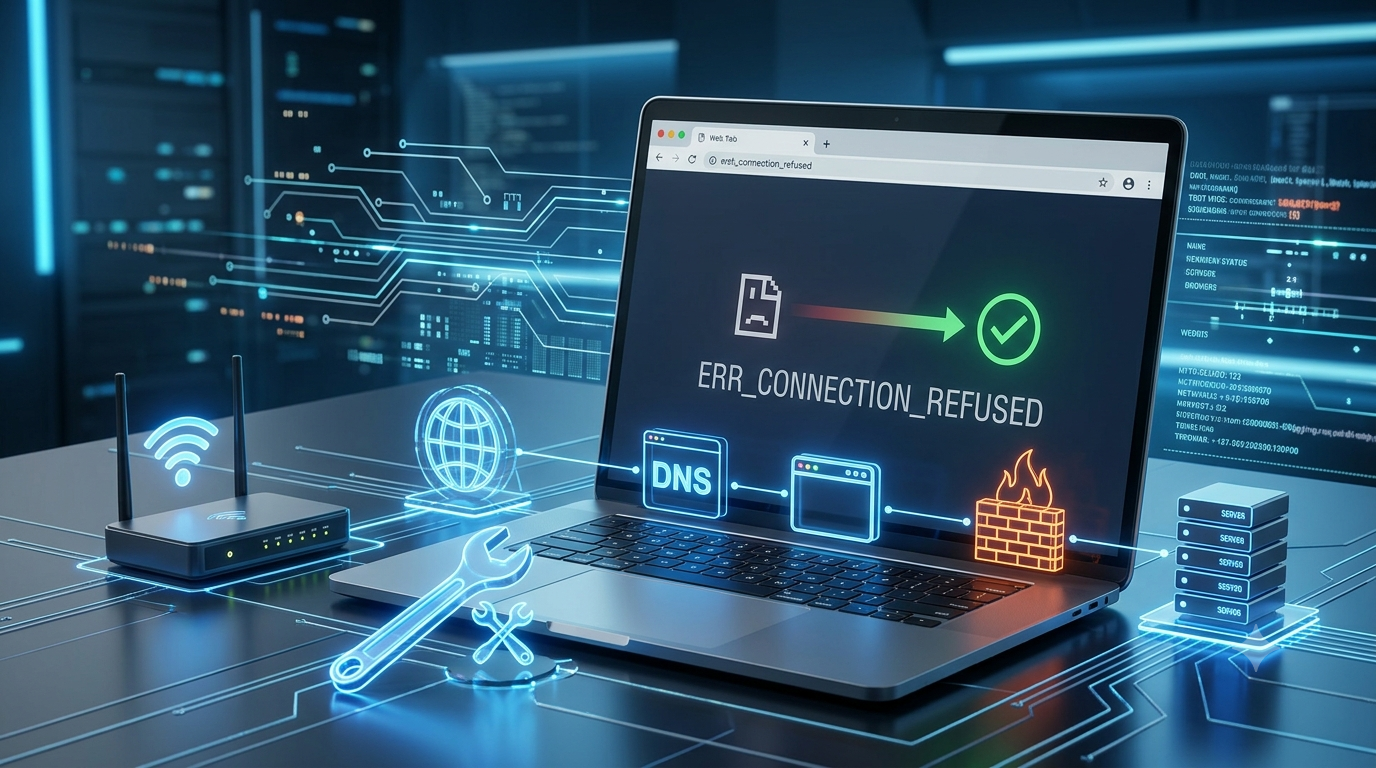
Seeing the ERR_CONNECTION_REFUSED message in your browser can be frustrating, especially when you need to access an important website. This error usually appears in browsers like Chrome, Edge, and Brave when your computer cannot establish a connection with a website’s server.
The good news is that you don’t need to be a tech expert to solve this problem. In many cases, the error can be fixed in just a few minutes by following a few simple steps.
In this guide, you’ll learn what the ERR_CONNECTION_REFUSED error means, why it happens, and how to fix it without technical help.
What Is the ERR_CONNECTION_REFUSED Error?
The ERR_CONNECTION_REFUSED error means that your browser tried to connect to a website, but the connection was rejected by the server.
This can happen because of:
- Internet connection problems
- Browser issues
- Incorrect DNS settings
- Firewall restrictions
- VPN conflicts
- Server downtime
- Antivirus settings
Fortunately, most of these problems can be fixed at home.
Why Does ERR_CONNECTION_REFUSED Happen?
Before fixing the issue, it’s important to understand the possible causes.
Common reasons include:
- The website server is offline.
- Your internet connection is unstable.
- Your browser cache is corrupted.
- Your firewall is blocking the website.
- DNS settings are incorrect.
- A VPN or proxy server is interfering.
- Browser extensions are causing conflicts.
Let’s examine each solution individually to understand them better.
1. Check Whether the Website Is Down
Before changing any settings, make sure the website itself is working.
Try these methods:
- Open the website on another device.
- Use mobile data instead of Wi-Fi.
- Ask a friend to check the website.
- Try accessing a different website.
If the website is down for everyone, you’ll have to wait until the server comes back online.
2. Restart Your Internet Router
A simple router restart can solve many connection problems.
Follow these steps:
- Turn off your router.
- Unplug it from the power source.
- Wait for 30 seconds.
- Plug it back in.
- Turn it on again.
After restarting, try opening the website again.
3. Refresh the Web Page
Sometimes, the connection issue is temporary.
Press:
- Windows: Ctrl + F5
- Mac: Command + Shift + R
This forces the browser to reload the page.
4. Clear Your Browser Cache and Cookies
Corrupted cache files can trigger the ERR_CONNECTION_REFUSED error.
In Google Chrome:
- Click the three dots in the top-right corner.
- Select Settings.
- Go to Privacy and Security.
- Click Clear browsing data.
- Select Cookies and Cached Images.
- Click Clear Data.
Restart the browser and try again.
5. Disable Browser Extensions
Some browser extensions interfere with website connections.
To test this:
- Open your browser extensions page.
- Disable all extensions.
- Restart the browser.
- Open the website again.
If the website works, enable the extensions one by one to find the problem.
6. Turn Off VPN or Proxy Services
VPNs and proxy servers sometimes block websites.
To disable your VPN:
- Open your VPN app.
- Disconnect from the server.
- Refresh the page.
If you use a proxy server:
- Open your computer settings.
- Go to Network Settings.
- Turn off the proxy option.
7. Flush Your DNS Cache
Your computer stores DNS information to load websites faster. Sometimes, outdated records cause connection errors.
For Windows:
- Open Command Prompt as Administrator.
- Type:
ipconfig /flushdns
- Press Enter.
You should see a message confirming that the DNS cache was cleared.
8. Change Your DNS Server
If your internet provider’s DNS server is having problems, switch to a public DNS service.
Popular DNS servers:
Google DNS
- 8.8.8.8
- 8.8.4.4
Cloudflare DNS
- 1.1.1.1
- 1.0.0.1
Adjusting your DNS configurations can enhance your internet connection’s speed and stability.
9. Temporarily Disable Your Firewall
Sometimes, your firewall blocks safe websites by mistake.
To test this:
- Open your firewall settings.
- Temporarily disable the firewall.
- Visit the website.
If the website opens, add it to the firewall’s allowed list and turn the firewall back on.
Important: Never leave your firewall disabled permanently.
10. Disable Your Antivirus Temporarily
Antivirus programs occasionally block websites.
Try turning off your antivirus for a few minutes and then open the website again.
If this solves the problem, adjust your antivirus settings.
11. Reset Browser Settings
If nothing works, reset your browser to its default settings.
In Chrome:
- Open Settings.
- Click Reset Settings.
- Select Restore settings to their original defaults.
- Confirm the action.
This will remove problematic settings and extensions.
12. Restart Your Computer
Many users ignore the simplest solution: restarting the computer.
A restart can fix:
- Network issues
- DNS conflicts
- Browser problems
- Background software errors
Restart your device and test the website again.
How to Prevent ERR_CONNECTION_REFUSED in the Future
To avoid this error in the future:
- Keep your browser updated.
- Clear your cache regularly.
- Use trusted browser extensions.
- Update your antivirus software.
- Restart your router occasionally.
- Use a reliable DNS service.
- Avoid suspicious websites.
These habits can reduce connection problems.
When Should You Contact Technical Support?
You should contact technical support if:
- The error appears on all websites.
- None of the solutions work.
- Your internet connection keeps dropping.
- You suspect a hardware problem.
- Your ISP is experiencing outages.
In some cases, the issue may be outside your control.
Conclusion
The ERR_CONNECTION_REFUSED error looks scary, but it’s usually easy to fix. In most cases, restarting your router, clearing your browser cache, changing your DNS server, or disabling a VPN will solve the problem.
By following the steps in this guide, you can troubleshoot the issue yourself and get back online without needing professional help.
FAQ’s
1. What does ERR_CONNECTION_REFUSED mean?
It means that your browser tried to connect to a website, but the server rejected the connection.
2. Can a VPN cause ERR_CONNECTION_REFUSED?
Yes, some VPNs and proxy servers can interfere with website connections.
3. Does clearing the browser cache fix the error?
Yes, corrupted cache files can sometimes cause the ERR_CONNECTION_REFUSED error.
4. Is ERR_CONNECTION_REFUSED caused by viruses?
Usually, no. However, malware or antivirus settings can occasionally cause connection problems.