

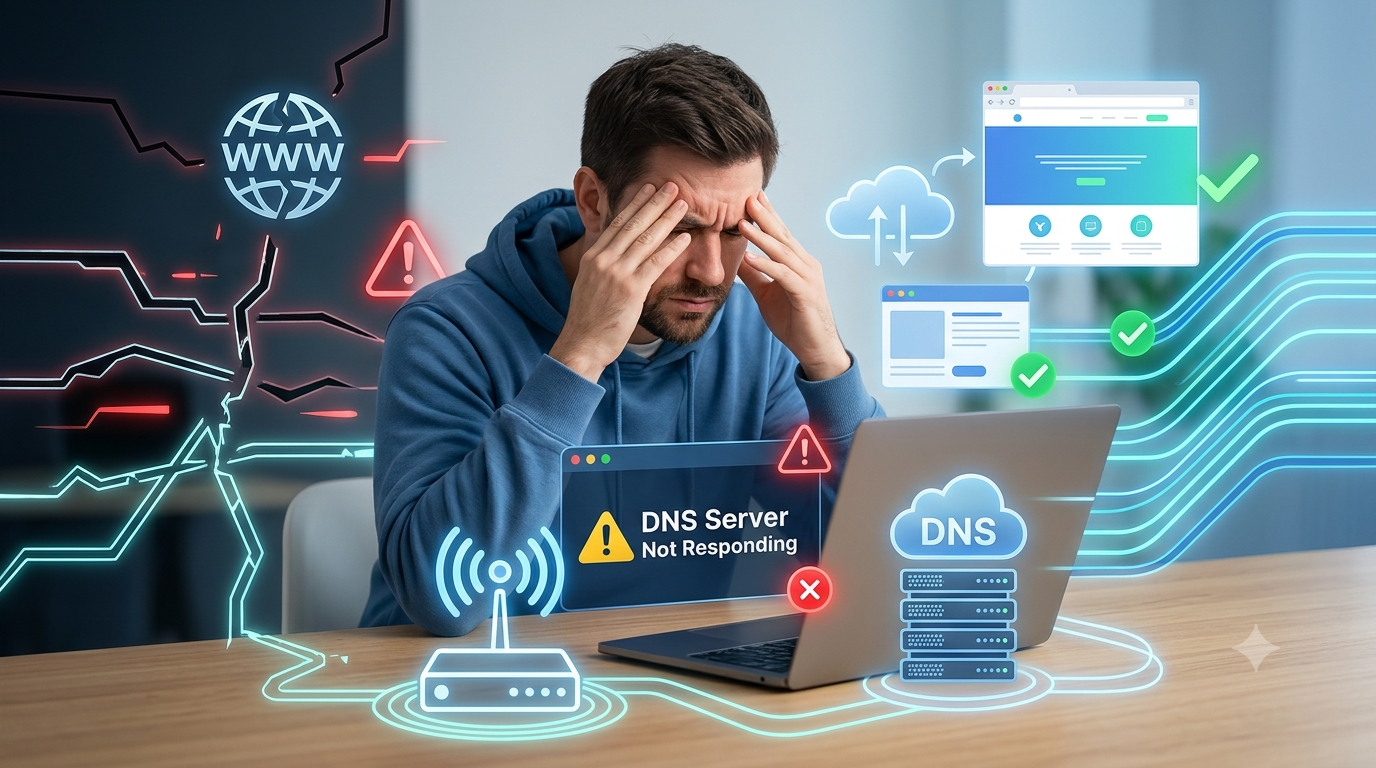
Seeing the “DNS Server Not Responding” error can be frustrating, especially when you need the internet for work, school, or entertainment. The good news is that this problem is usually easy to fix and doesn’t require advanced technical knowledge.
The error simply means your computer cannot communicate with the Domain Name System (DNS) server. Since DNS translates website names into IP addresses, your browser cannot load websites if this process fails.
Fortunately, most DNS issues can be solved in just a few minutes using simple troubleshooting steps. In this guide, we’ll explain what the error means, what causes it, and how you can fix it without needing any technical experience.
What Is the DNS Server Not Responding Error?
A DNS server functions similarly to a phone book for the internet, translating domain names into IP addresses. When you type a website address such as www.example.com, the DNS server converts it into an IP address that your computer can understand.
If the DNS server stops responding, your device cannot find the website, even if your internet connection appears to be active.
You may see messages like:
- DNS Server Not Responding
- DNS Address Could Not Be Found
- This Site Can’t Be Reached
- Server DNS Address Could Not Be Found
These messages all point to a problem with DNS communication.
Common Causes of the Error
Several issues can trigger this problem, including:
- Temporary internet connection issues
- Router problems
- Incorrect DNS settings
- Outdated network drivers
- Browser cache problems
- Antivirus or firewall interference
- Internet Service Provider (ISP) DNS outages
Understanding the possible causes makes troubleshooting much easier.
1. Restart Your Router
The simplest solution is often the most effective.
Turn off your Wi-Fi router or modem, wait about 30 seconds, and then turn it back on.
Once the connection is restored, try opening a website again.
Restarting the router refreshes your internet connection and resolves many temporary DNS issues.
2. Restart Your Computer
Sometimes the problem is with your computer rather than your internet connection.
Restarting your device clears temporary network glitches and reloads system services.
After restarting, check if websites load normally.
3. Try a Different Browser
Your browser may be causing the issue.
If you’re using Chrome, try opening the same website in:
- Microsoft Edge
- Firefox
- Safari
- Opera
If the website works in another browser, clearing your browser’s cache may solve the problem.
4. Clear Your Browser Cache
Browsers store temporary files to speed up browsing.
Occasionally these files become corrupted and interfere with DNS requests.
Clear your:
- Cache
- Cookies
- Browsing history
Restart the browser afterward and test your connection.
5. Disable and Re-enable Your Network Connection
Refreshing your network adapter often fixes communication issues.
On Windows:
- Open Network Settings.
- Disable your Wi-Fi or Ethernet connection.
- Wait a few seconds.
- Enable it again.
Reconnect to the internet and check whether the error has disappeared.
6. Change Your DNS Server
Your Internet Service Provider’s DNS server may be temporarily unavailable.
You can switch to a reliable public DNS service.
Popular choices include:
Google Public DNS
- 8.8.8.8
- 8.8.4.4
Cloudflare DNS
- 1.1.1.1
- 1.0.0.1
Changing your DNS settings often resolves browsing problems within minutes.
7. Flush the DNS Cache
Your computer stores DNS information locally to load websites faster.
If this stored information becomes outdated, websites may fail to open.
Windows users can flush the DNS cache by opening Command Prompt and running:
ipconfig /flushdns
After receiving the confirmation message, restart your browser and try again.
8. Restart Your Router and Modem Together
If you use both a modem and a separate router, restart both devices.
Turn them off for about one minute before switching them back on.
Allow several minutes for the internet connection to fully reconnect.
9. Temporarily Disable Your Antivirus or Firewall
Security software occasionally blocks legitimate DNS requests.
Temporarily disable your antivirus or firewall to test whether it is causing the problem.
If websites start working, review your security software settings or update the program before enabling protection again.
Remember to reactivate your security software after testing.
10. Update Network Drivers
Outdated network drivers can sometimes cause connection problems.
On Windows:
- Open Device Manager
- Expand Network Adapters
- Right-click your adapter
- Select Update Driver
Installing the latest driver can improve network stability.
11. Check Whether Your ISP Is Having Problems
Sometimes the issue isn’t on your device.
Your Internet Service Provider may be experiencing a temporary DNS outage.
You can:
- Visit your ISP’s website using mobile data.
- Check their social media pages.
- Contact customer support.
If the problem is widespread, you’ll simply need to wait until the service is restored.
12. Restart Your Device in Safe Mode
If a background application is interfering with your internet connection, Safe Mode can help identify the issue.
If the DNS error disappears in Safe Mode, recently installed software may be responsible.
How to Prevent DNS Problems
While you can’t avoid every internet issue, a few simple habits can reduce the chances of future DNS errors.
Keep Your Router Updated
Install firmware updates whenever they become available.
Restart Your Router Occasionally
A quick restart every few weeks helps maintain a stable connection.
Use Reliable DNS Servers
Public DNS providers such as Google or Cloudflare are known for their speed and reliability.
Keep Your Operating System Updated
Software updates often include networking improvements and bug fixes.
Scan for Malware
Malicious software can interfere with network settings and DNS communication.
Regular security scans help protect your device.
When Should You Contact Technical Support?
If you’ve tried all the above solutions and the error continues, it may be time to seek help.
Contact your Internet Service Provider if:
- Multiple devices cannot access the internet.
- The problem lasts several hours.
- Your router displays warning lights.
- Your internet connection frequently disconnects.
They can determine whether the issue is related to your account, equipment, or local network.
Conclusion
The DNS Server Not Responding error may seem intimidating, but it is often caused by simple network or configuration issues. In many cases, restarting your router, clearing your browser cache, changing your DNS server, or refreshing your network connection is enough to restore internet access.
The best part is that you don’t need technical expertise to solve most DNS problems. By following these beginner-friendly steps, you can quickly get back online and reduce the chances of encountering the same issue again.
Frequently Asked Questions
1. What does “DNS Server Not Responding” mean?
It means your computer cannot communicate with the DNS server that translates website names into IP addresses, preventing websites from loading.
2. Can I fix the DNS error without technical knowledge?
Yes. Most DNS problems can be solved by restarting your router, clearing your browser cache, changing your DNS server, or restarting your computer.
3. Is changing my DNS server safe?
Yes. Using trusted public DNS services like Google Public DNS or Cloudflare DNS is generally safe and may even improve browsing speed and reliability.
4. Why does the DNS error happen even when my Wi-Fi is connected?
Your Wi-Fi connection may be working correctly, but the DNS server responsible for finding website addresses may be unavailable or misconfigured.
5. How long does it take to fix a DNS Server Not Responding error?
Most users can resolve the issue within 5 to 15 minutes by following the troubleshooting steps outlined in this guide.