

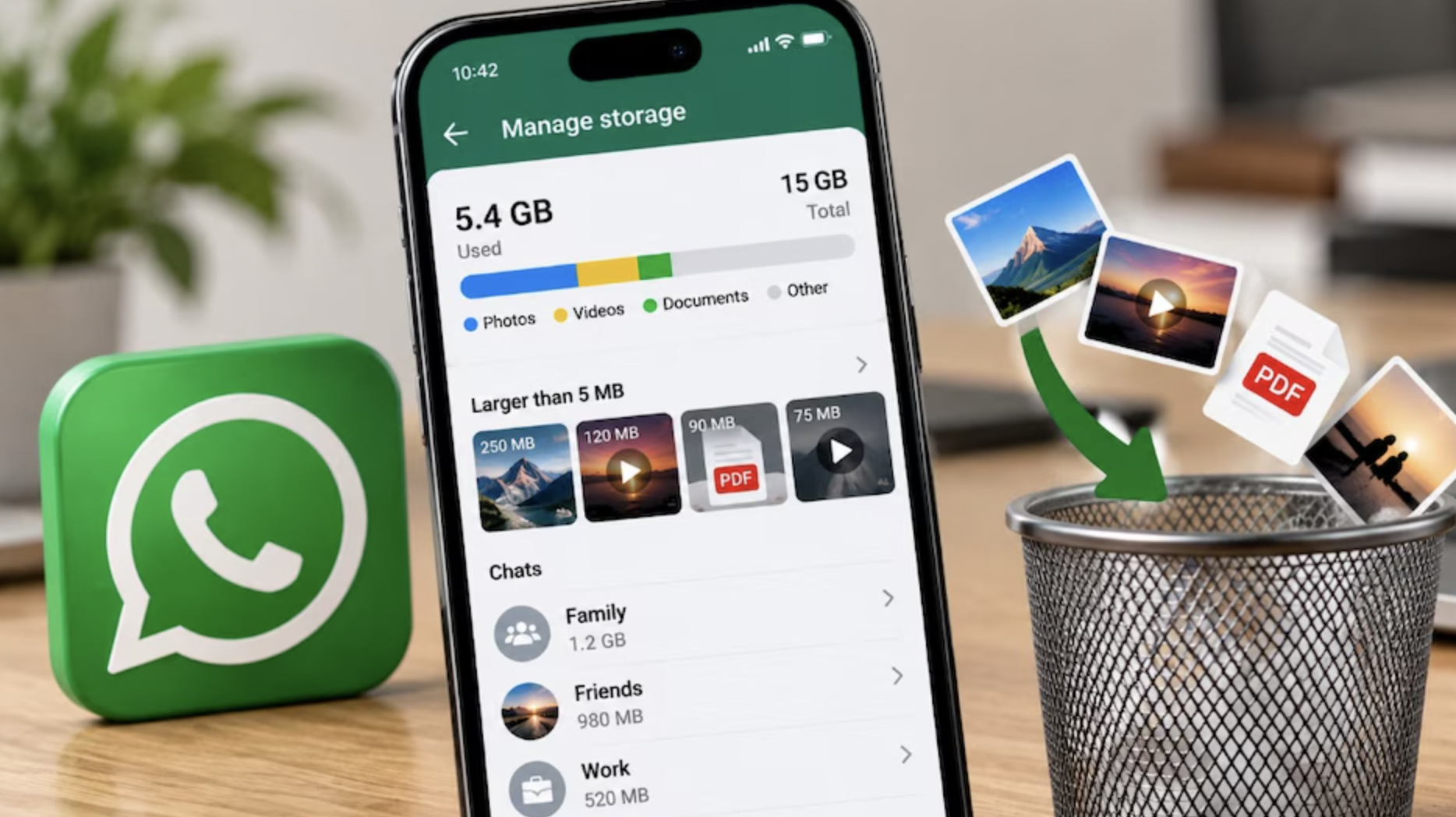
Phone storage fills up quickly, and WhatsApp chats packed with photos, videos, and voice notes are a common cause. WhatsApp storage management lets you find large files inside a single chat and remove them while the conversation stays in place.
In this article, we will explore how the feature works, which files to clear first, a numbered sequence you can follow, and where the official announcement stops giving details.
How WhatsApp Storage Management Works
According to a Meta newsroom post dated March 26, 2026 (the page also lists March 25), you can now look through any chat for large files and remove them without deleting the whole conversation. When you clear a chat, you can also choose to remove only its media and keep the message history. That matters because the text of an old group chat is tiny, while its media eats the space.
Treat that post as older news. It described features that were rolling out at the time and said they would be available to everyone soon. Your version of the app may have changed since then, or the feature may have reached you later than it reached someone else. If a screen below does not match yours, check WhatsApp’s own help pages.
The same post also covered chat transfer, two iOS accounts and Meta AI tools. None of those help with storage, so they are left aside here.
A Clear-Space Order Table
The announcement does not rank what to delete first. The order below is general guidance from how phones and chat apps usually behave, not something Meta published. The idea is to start with the lowest regret and move toward the highest.
| Order | What to remove | Risk | What you keep |
| 1 | Large videos in your biggest chats | Low if you have a copy elsewhere | Text, photos, voice notes |
| 2 | Forwarded memes, clips and files in busy groups | Low, usually duplicates | Group conversation history |
| 3 | Media only, from old finished chats | Medium, it may be the only copy | Full message history |
| 4 | Voice notes and documents you may need later | Medium to high | Text of the conversation |
| 5 | Whole chats | High, messages cannot be rebuilt | Nothing from that chat |
Rows 1 to 4 all use the media-only route the post describes. Row 5 is the only one that breaks the promise in the title, and it should come last. If you need messages for records, such as a landlord, a seller or a workplace agreement, do not delete that chat at all.
Seven Numbered Steps to Free Space
The post gives menu steps only for Manage Storage, so the first four steps below are sourced and the rest are general guidance. Menu names can vary by app version.
Step 1:
Check your phone first. Open the phone’s own storage settings and see how much WhatsApp takes compared with other apps. This is general guidance, and it stops you from cleaning the wrong app.
Step 2:
Back up what matters. Copy important photos and videos to your gallery, cloud storage or a computer before removing anything.
Step 3:
Pick your biggest chat. Look at your busiest groups and your longest one-to-one threads. This is general guidance, not a Meta claim.
Step 4:
Open Manage Storage. Open the chat, tap the chat name at the top and select Manage Storage. This is the one path the Meta post spells out.
Step 5:
Sort out the large files. Inside Manage Storage you can find and remove large files from that chat. Pick files you have saved or no longer need.
Step 6:
Clear media, not messages. If you clear a chat, pick the option that removes only its media and keeps the message history. Read the confirmation screen, since wording may differ.
Step 7:
Repeat and recheck. Go to the next biggest chat, then compare your phone’s storage figure with Step 1. The in-app Settings, then Storage and data screen is another general option, and its name may vary.
What the Announcement Does Not Say
The post is a short product announcement, so several things a careful reader would want are missing. It does not say how many megabytes or gigabytes you can expect to recover. It does not say whether removed media can be restored from a backup, whether other people in a group keep their own copies, or whether the feature behaves the same on iPhone and Android.
Here is what is reasonable from general knowledge. Removing media from your phone normally affects your device, not other people’s phones. If your chat backup includes media, the files may still exist in the backup, and a restore could bring them back. Check WhatsApp’s help pages for the current rules rather than assuming. Everything specific here also comes from one Meta post, not independent testing, so measure your own result.
Where to Start With WhatsApp Storage Management
Begin with a quick audit, not a purge. Check the phone’s storage screen, back up anything irreplaceable, then work through your three largest chats with Manage Storage. Stop when you have the headroom you need.
Keep WhatsApp updated from your app store, since features arrive in stages. If a chat holds anything you might need for records, leave it alone.
Conclusion
WhatsApp storage management is most useful when you treat it as targeted trimming. Remove large media first, keep the messages, and delete whole chats only when you are sure. Because the source is an older announcement, trust the in-app wording and WhatsApp’s help pages if your screens differ.
Frequently Asked Questions
How Do I Clear WhatsApp Storage Without Deleting Chats?
Open the chat, tap the chat name and select Manage Storage, as the March 2026 Meta post describes. From there you can find and remove large files while the conversation stays. When clearing a chat, choose the option that removes only media and keeps messages.
Can I Delete Only the Photos and Videos From a WhatsApp Chat?
Yes, according to the same post, you can remove a chat’s media and keep its message history. Back up anything you want to keep first.
Is the Manage Storage Feature Available on Every Phone?
The post said the features were rolling out and would be available to everyone soon, but it is an older announcement. Update the app from your app store and check whether the option appears. If not, WhatsApp’s help pages list current availability.
Should I Back up Before Clearing Space in WhatsApp?
Yes, as general guidance. Copy photos, videos and documents you care about to your gallery, cloud storage or a computer before removing them.
Does Clearing Media Remove the Messages Too?
Not if you pick the media-only option the post describes. The message history is kept. If you choose to delete the whole chat instead, the messages go with it, so read each confirmation screen.