


Every laptop battery loses capacity over time, and the day it stops lasting through a meeting or a train journey tends to arrive sooner than owners expect. Replacing one costs money and effort, and sometimes the whole machine gets retired early because of it.
In this article we will discuss how laptop batteries wear out, which everyday habits slow that wear, and how to check the health of your own battery without special tools.
How lithium-ion batteries wear out
Almost every modern laptop uses a lithium-ion or lithium-polymer battery, and the way these cells age explains most of the advice you will read. Inside the cell, lithium ions move between two electrodes each time you charge and discharge. Over many cycles, small chemical side effects build up and reduce how much charge the cell can hold. Nothing is broken when this happens; it is the normal ageing of the technology.
Charge cycles
A charge cycle is counted as the equivalent of using one full battery’s worth of energy, not as one plug-in event. Using half the battery on Monday and half on Tuesday adds up to one cycle. Makers publish a cycle count after which the battery is expected to keep a stated share of its original capacity, and that number differs by brand and by model, so check your own maker’s documentation rather than trusting a rule from a forum.
The practical message is that cycles are a budget, but not a budget you should obsess over. Using your laptop is what it is for. The habits that follow matter more than counting cycles.
Time spent at high charge
Cells are under the most stress when they sit at or near full charge, and also when they are drained close to empty. This is why many advice pages suggest staying in the middle of the range for everyday use. A battery that spends weeks at one hundred percent on a desk ages faster than one that spends the same weeks resting at a moderate level, even though neither is being cycled.
Temperature over time
Heat speeds up the unwanted chemical reactions, and the effect accumulates. A battery that is regularly hot, whether from a warm room, a sunny window or a heavy workload, loses capacity faster than a cool one. Cold is a different issue: it temporarily reduces the capacity you can use, but it does not do the same long-term harm unless you charge the cells while they are very cold.
Heat is the first habit to fix
If I could change only one thing for a typical owner, it would be the heat. Batteries tolerate a wide range of temperatures, but they age best near a comfortable room temperature, and laptops generate heat from the processor, the graphics chip and the charging circuit itself.
Start with where the machine sits. A laptop on a duvet, a sofa cushion or your lap blocks the air intakes, and the fans have to work harder while the battery sits beside the hot parts. A hard, flat surface lets air move underneath. A simple test is to put a hand on the underside after an hour of work: if it feels uncomfortably hot, the machine and its battery are being cooked.
A stand that lifts the rear of the laptop improves airflow and is cheap. Cooling pads are mixed in value, since some move air well and others are little more than a plastic tray with a noisy fan, so read independent reviews before buying one. Dust is the other culprit. Intake grilles clogged with fluff force the fans to run hard, and a gentle clean with a soft brush or short bursts of compressed air outside the machine can help. If you are not comfortable opening the case, leave that to a repair shop.
Never leave a laptop in a parked car, in direct sun on a table, or inside a bag on a warm day while it is running. A laptop that wakes itself inside a padded sleeve, for example to fetch updates or mail, can overheat with nowhere for the warmth to go. If the laptop is going into a bag, shut it down fully instead of leaving it asleep, above all on journeys, and keep it away from heaters and radiators at home.
Heavy workloads such as gaming, video editing and long video calls produce the most heat. You do not need to avoid them, but if you do them for hours every day, running on mains power with good airflow, and perhaps using the maker’s charge limit described below, is much kinder to the battery than running the same workload while charging in a warm room.
Charging habits that slow the decline
Charging advice has changed over the years, partly because older battery types had different needs. Some of the old rules, like draining a battery fully before recharging it, belong to earlier battery chemistries and do harm to modern lithium cells. The ideas below fit today’s batteries, though the details can differ by maker.
Staying in the middle of the range
A commonly suggested range for everyday use is to keep the charge roughly between twenty and eighty percent when convenient. That is not a strict rule, and you should never run out of power at an important moment just to follow it. Treat it as a tendency: avoid letting the battery sit at zero, and avoid keeping it at the top for weeks.
Charge limits and battery care modes
Many laptops now include a setting that stops charging at a chosen level, often something like eighty percent, or that learns your routine and holds the charge back until shortly before you usually unplug. Names differ between makers, and some provide the feature in the operating system, in the firmware setup screen or in a utility installed by the maker. If your laptop spends most of its life on a desk, plugged in, switching this on is probably the single most useful battery habit available.
The trade-off is a shorter run time on days when you unplug, since the battery was not filled to the top. For most people with a charger at the desk, that is a fair price.
Plugged in all the time
Is it bad to keep a laptop plugged in permanently? Modern laptops stop charging when the battery is full and run from the adapter, so there is no overcharging in the old sense. The concern is the long time at a high charge level, together with the warmth of the machine. If you do keep it plugged in, using a charge limit and keeping the laptop cool takes care of most of the problem.
Overnight charging
Charging overnight is generally acceptable on modern machines for the reason above, but it keeps the battery at full for hours. If your laptop offers an optimised or scheduled charging feature, enable it. Otherwise, charging during the day and unplugging around eighty percent is a gentle option for people who do not mind the attention.
Fast charging and the right adapter
Faster charging produces more heat, so use it when you need it and not out of habit. Use the adapter supplied with the laptop, or a quality replacement that meets the maker’s specification. Cheap unbranded chargers can deliver unstable power and, in rare cases, create a safety hazard. Where a laptop charges over a universal connector, check that the charger’s rating matches what the maker recommends, and avoid unknown cables.
Settings that reduce how hard the battery works
A battery lasts longer in two ways: it ages more slowly, and it is asked to deliver less energy per hour. The second matters because lighter use stretches each charge, which means fewer cycles used per week.
The screen is usually the biggest consumer after the processor, so lowering the brightness is the first move. Setting a short timeout for the display and turning on automatic dimming also helps. A refresh rate lower than the maximum your screen supports saves energy on some machines, which is worth testing if your laptop offers a choice.
Next, look at what runs in the background. Most operating systems include a battery usage screen that ranks applications by how much power they have drawn. Open it, look at the top three, and ask whether each one needs to run. Cloud sync tools, chat programs that start with the machine, and browser tabs playing hidden video are frequent offenders. A browser with forty open tabs can use more power than people expect, so closing unused tabs is cheap and works.
Power modes are worth a minute of attention. A balanced or battery saver mode reduces processor speed and background activity, and on many machines you can set it to switch on automatically when the battery falls below a chosen level. Reserve the high-performance mode for tasks that need it, preferably with the charger connected.
Connected accessories matter too. Wireless features such as Bluetooth and Wi-Fi draw power when searching for connections, and a keyboard backlight set to maximum adds a little. USB devices that draw power from the laptop, such as external drives and phones being charged, drain the battery quicker than you might think. When you are working away from a socket, turn off what you are not using.
Finally, keep the software updated. Updates from the maker sometimes improve power management, fix battery reporting errors and adjust charging behaviour. Updating the operating system and firmware is useful in general, though it is wise to have a backup of important files before big updates.
Fans themselves give useful clues. A laptop whose fans spin up loudly while you are only reading a web page is telling you something: either a background task is running wild, or the vents are blocked. Open the activity or task manager, sort by processor use, and look for a program that sits near the top without good reason. Closing or updating it often quiets the machine and cools the battery at the same time.
Ambient temperature matters more than most owners think. A laptop used all summer in a room without cooling will age faster than the same model in a mild climate, and nothing in the settings can fully offset that. On the hottest days, move the work to the coolest room, keep the machine out of direct sun, and consider unplugging the charger if the case feels hot, since charging adds its own warmth.
Storing a laptop that will sit unused
Plenty of laptops spend months in a drawer, a spare room or a school cupboard, and storage is where batteries can be damaged without anyone noticing. The danger is leaving a cell drained to zero, because a deeply discharged lithium battery can drop to a voltage from which the protective circuit will not allow it to charge again.
The commonly recommended approach for storage over several weeks or months is to charge the battery to around half before shutting down, then store the laptop in a cool, dry place. Avoid hot attics, cold garages and spots near windows. Shut the laptop down fully instead of leaving it asleep, since sleep keeps drawing a little power.
Check on the laptop every few months. Turn it on, let it charge to about half again, and confirm that it still works. If you store it for a year or more, one such check every few months is much better than none.
Removable batteries, found in some older or business laptops, can be taken out for long storage in line with the maker’s guidance. Do not attempt this on a sealed machine, since opening the case can damage it and may void warranty cover.
For a spare laptop that you use rarely, such as a family machine used a few times a year, it is fine to leave it at a moderate charge and top it up when you remember. Do not leave it permanently connected in a hot cupboard, because that combines high charge with heat, the two worst conditions for the battery.
Checking battery health and spotting trouble
Guessing is unnecessary, because most laptops can report their battery condition. The methods differ by system and maker, so this section covers the general approach, and your manual or support page will give the precise steps.
Reading the built-in report
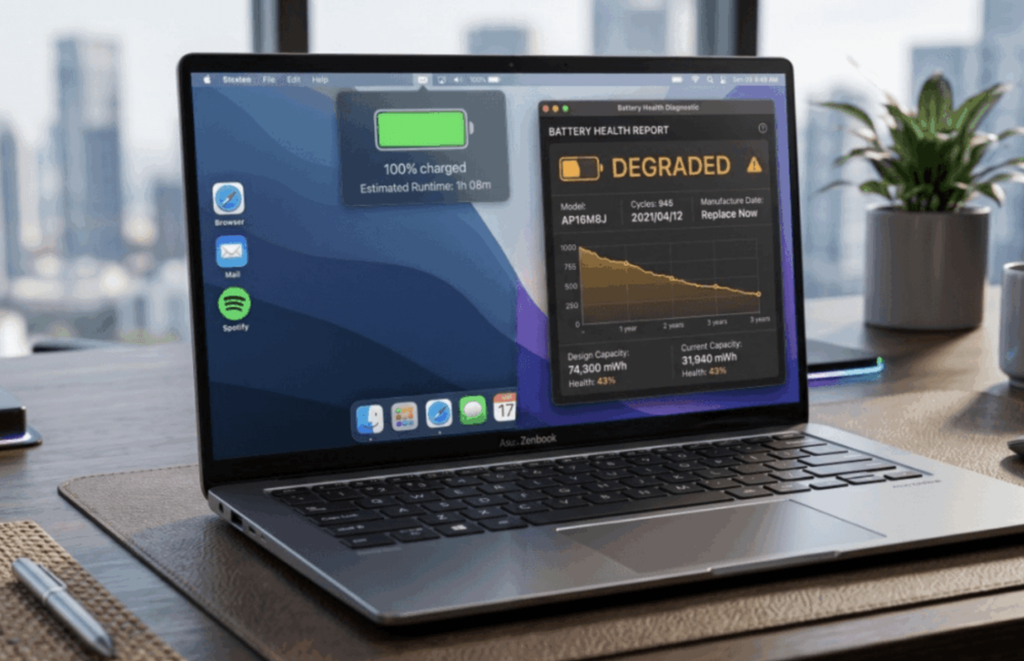
Many operating systems include a battery health or battery status page that shows maximum capacity compared with the original design capacity, a cycle count, or a simple condition label. Some makers add their own diagnostic tool, which may run a more detailed test. Where you can see capacity as a percentage of the original, a battery that holds noticeably less than it used to is simply ageing, and is a candidate for replacement when run time becomes a nuisance.
The figures are estimates produced by the battery’s own controller, so do not treat a drop of a couple of percentage points as a crisis. Look at the trend over several months instead.
A simple real-world test
Charge to full, unplug, and use the laptop as you normally would, with the same brightness and applications. Note how long it lasts and write it down. Do the same test every few months under similar conditions. The comparison is rough, but it matches what you care about, which is whether you can get through your day.
Warning signs that need action
Some symptoms are more than ordinary ageing. A battery that swells can lift the keyboard, push the trackpad upward, or make the case bulge so that the laptop no longer sits flat. A swollen battery is a safety concern. Stop using and charging the laptop, keep it away from flammable materials, and have it inspected by the maker or an authorised repair service. Do not puncture or press on it.
Sudden shutdowns at a displayed charge of thirty or forty percent, a battery that will not charge at all, or a laptop that becomes very hot while charging also deserve attention. Sometimes the cause is a software calibration problem and an update fixes it, but if the behaviour persists, a technician should look at it. The table below pulls together the habits that usually matter and how much effort each needs.
| Habit | Effort | Typical benefit | Caution |
| Keep the laptop cool and ventilated | Low | Slows ageing the most | Cooling pads vary in quality |
| Use a charge limit or battery care mode | Low, once | Reduces time at full charge | Shorter run time on unplugged days |
| Avoid draining to zero | Low | Protects the cell | Not a reason to carry a charger everywhere |
| Lower brightness and close heavy apps | Low | Fewer cycles per week | Slightly dimmer screen |
| Store at about half charge, cool and dry | Low | Prevents deep discharge | Check every few months |
| Use the maker’s charger or a quality equivalent | Low | Stable power, safety | Cheap unbranded chargers can be risky |
Reading the cycle count sensibly
A cycle count on its own says little. Two laptops with the same count can be in very different shape if one lived on a cool desk and the other in a hot bag. Compare the count with the maker’s stated cycle life, then weigh it against the capacity figure and your own run-time test. When all three agree that the battery is tired, replacement is a calm decision; when they disagree, suspect software or a faulty reading first.
Calibration myths
You may read that a battery needs to be calibrated by draining and charging it fully every month. For modern laptops this is mostly a myth. The only common reason to do a full cycle is when the percentage display behaves oddly, for example jumping from forty to five percent, and some makers publish their own recalibration steps for that case. Follow the maker’s instructions if you try it, and do it rarely.
Second-hand laptops deserve a final word. When buying a used machine, ask for a battery health screenshot or check the report yourself before paying. A seller who cannot or will not show it is giving you information, and a discount for an aged battery is reasonable to ask for.
Replacing the battery or accepting the wear
At some point the numbers will show that the battery has aged, and the decision becomes practical. If the laptop still meets your needs, a replacement battery is often a good value, especially compared with buying a new machine. Cost and difficulty vary widely by brand and by country, and some laptops have batteries glued in place, which makes replacement a job for a professional.
Use the maker or an authorised service provider where you can. Third-party batteries range from excellent to poor, and a poorly made cell is not worth the saving. Check what your warranty or consumer rights cover, since in some regions a battery that fails early may qualify for repair, and rules differ by country, so check local guidance.
Before paying for anything, try the cheap steps. Update the firmware, run the maker’s diagnostic, and check whether a rogue app is draining the battery. A laptop that suddenly loses hours of run time after being fine for years may have a software problem, not an ageing cell.
If you rely on the laptop mainly at a desk, you may not need a new battery at all. A machine with a tired battery that stays plugged in works exactly like one with a healthy battery, apart from the lack of backup power. One caution here is that an old battery that has swollen should be dealt with promptly, as above, and not left in place just because the laptop still works.
When the time comes to dispose of an old battery or a retired laptop, do not put it in household rubbish. Lithium cells can start fires in bin lorries and recycling plants, and many shops, councils and makers run collection schemes. Rules differ by country, so check what is offered locally.
A routine worth adopting
Most of the benefit comes from a short list that costs almost no effort once it is set up. Begin with the settings, since you do them once: turn on your laptop’s charge limit or battery care mode if it has one, set a sensible screen timeout and brightness, and enable the battery saver to start automatically at a moderate level.
Next, change where and how you place the machine. Work on a hard surface, keep the vents clear, and never let it bake in a car or by a radiator. If you work at a desk for most of the day, consider a stand so that air moves freely beneath the case.
Then adjust your charging. Plug in when convenient, and do not worry about topping up a little at a time. Avoid running the laptop to zero as a routine, and do not leave it sitting empty. When you are away for weeks, shut it down at around half charge and store it somewhere cool.
Every few months, take a minute to look at the battery health report and write down the result. If the capacity is dropping at a steady, gentle pace, carry on. If it falls suddenly, or the case starts to bulge, deal with it promptly.
Finally, keep perspective. A battery is a consumable part, designed to wear. The habits in this article can add useful months or even years to its working life, but none of them is worth risking lost work. If you need the laptop running at its best for an important day, charge it fully, take the charger and stop worrying about the percentages.
Frequently Asked Questions
Is it bad to leave my laptop plugged in all the time?
It is not harmful in the old overcharging sense, because modern laptops stop charging when full. The wear comes from heat and long periods at a high charge, so a charge limit and good ventilation help.
Should I let my laptop battery drain to zero before charging?
No, that advice belongs to older battery types. Regular deep discharges put extra stress on lithium cells, so recharge when convenient instead.
What is a good charge range for laptop battery health?
Staying roughly between twenty and eighty percent is commonly suggested for everyday use. It is a tendency, not a rule, so charge fully when you need the run time.
How long should a laptop battery last before it needs replacing?
It depends on the model, the number of cycles and how warm it has been kept. Check your maker’s stated cycle life and your battery health report, and replace it when run time no longer suits your day.
Can I use a different charger for my laptop?
A quality charger that meets the maker’s specification is usually fine. Avoid cheap unbranded chargers, and check the rating on the label against your laptop’s requirements.
Why is my laptop battery swollen?
Swelling is caused by gas building up inside an aged or damaged cell, and it is a safety issue. Stop using and charging the laptop, and have it inspected by the maker or an authorised repair service.