

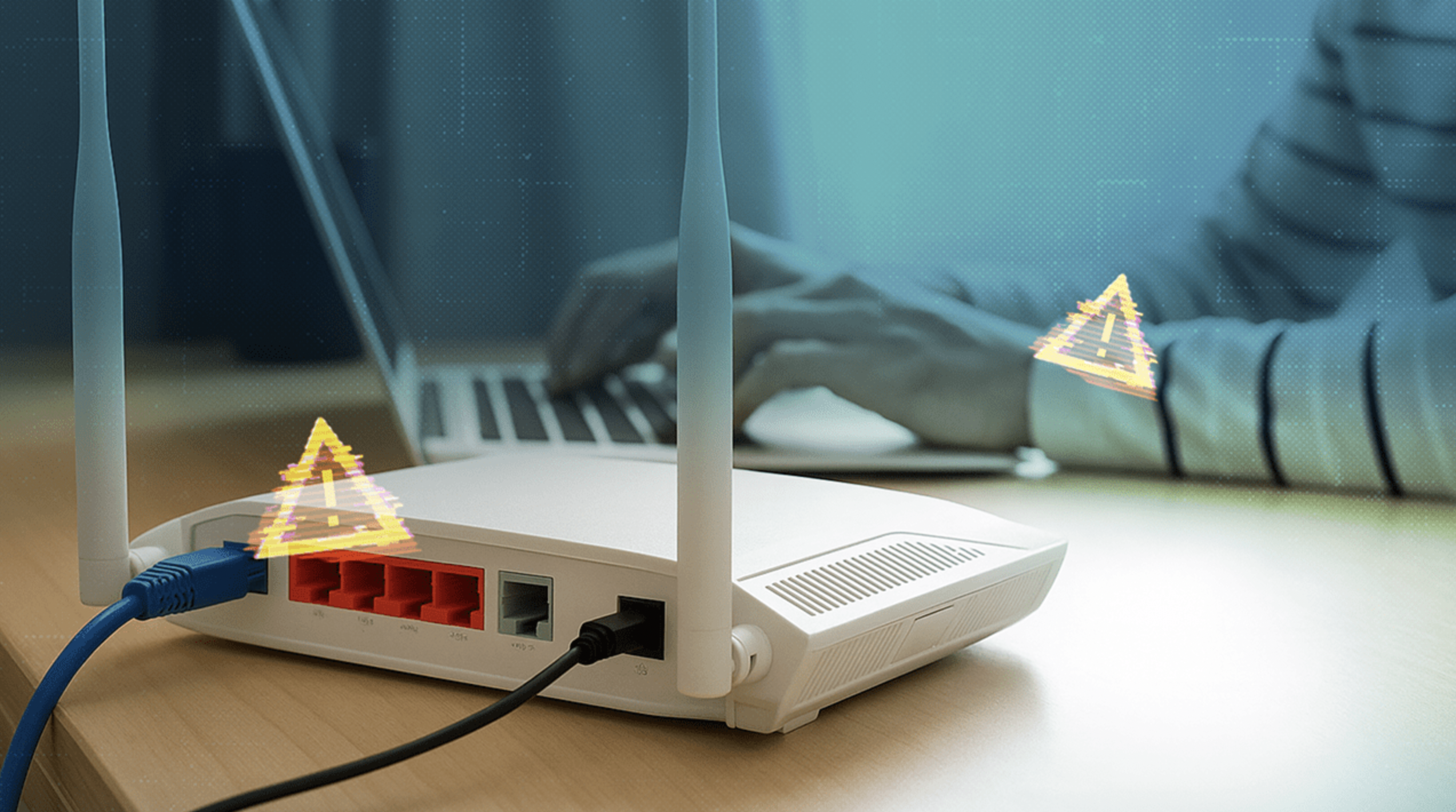
Your home router quietly handles every message, video call and banking session that leaves your house, yet most people never open its settings after the day it was plugged in. A few changes made in about half an hour can close the doors that criminals, careless neighbors and automated scanners rely on.
In this article we will explore the router settings that matter most, from administrator logins and encryption to updates, guest networks and unused features, and finish with a clear order of work.
Your router is the front door to every device at home
Think of the router as the front door of a building where every phone, laptop, television and smart speaker lives. Everything inside shares one connection to the internet, and anyone who gets past that door can try to reach the rest. The router also decides which devices may join, how traffic is encrypted over the air, and which services are visible from outside. That is why a weak router setting is more dangerous than a weak setting on a single gadget.
Most attacks on home networks are not personal. Automated tools sweep the internet looking for routers that still use factory passwords, expose their admin pages, or run software with known flaws. Nearby intruders are a smaller risk, but a poorly protected Wi-Fi password can let someone borrow your bandwidth, watch what devices you own, or use your connection for activity that gets traced back to you. Neither situation requires a sophisticated attacker, only a router that was left on its defaults.
It helps to know what you are protecting. Your router sits between two worlds: the local network, where your devices talk to each other, and the wider internet. Settings that govern the local side include the wireless password, guest access and device lists. Settings that govern the outside include remote management, port forwarding and firewall behavior. A good setup tightens both sides without making daily life harder.
Before changing anything, find out what you own. Many households use a combined modem and router supplied by an internet provider, while others use their own router connected to a provider modem. The provider may manage some settings remotely, and menu names differ between makers and countries. If you cannot find an option described here, check the printed manual, the maker’s support pages, or ask your provider whether they control it.
Change the default administrator login first

Every router has two separate passwords, and people often confuse them. The Wi-Fi password lets devices join the wireless network. The administrator password lets someone log in to the router’s settings page and change anything, including the Wi-Fi password, the DNS servers and the firewall. If that second login is still the factory default, usually printed on a sticker or listed in a public manual, an intruder who reaches the page needs no skill at all.
To reach the settings page, connect to your network, open a browser and type the router’s local address, which is commonly printed on the label. Typical addresses begin with 192.168, though the exact number varies by maker. Some routers are managed through a phone app instead of a web page, and the same advice applies there. Sign in with the current credentials, then look for a section called administration, system, device or account.
When you set the new administrator password, make it long and unique, and store it in a password manager or a written note kept somewhere safe at home. Do not reuse your Wi-Fi password, your email password or anything you use elsewhere. If the router lets you change the administrator username from the default, such as admin, do that as well, because it removes half of what an automated guess needs. If the router offers a login alert or a lockout after repeated failed attempts, switch it on.
Think about who else uses your connection before you start. Children, relatives and roommates may rely on certain devices, and a sudden change of passphrase will lock them out until each device is reconnected. Tell people when you plan to make changes, and do the work at a time when nobody is in the middle of a call, an exam or a download. A little planning prevents most of the frustration that makes people abandon security work halfway. Keep a list of devices that need the passphrase, such as printers, speakers and televisions, so that you can reconnect them quickly afterward.
Next, check the setting often called remote management, remote access or web access from the internet. When it is on, the settings page can be reached from anywhere, which is rarely what a household needs. Turn it off unless you have a specific reason and know how to protect it. If you do need remote access, prefer the maker’s secure app or a properly configured virtual private network over exposing the admin page directly.
Encryption choices decide who can read your traffic
Wi-Fi encryption scrambles the data traveling between your devices and the router so that people nearby cannot read it. The security mode you pick determines how strong that scrambling is and how hard it is to break your password. Over the years the common modes have been WEP, WPA, WPA2 and WPA3, listed from oldest to newest. The first two are considered broken or obsolete and should not be used under any circumstances.
WPA3 is the strongest mode in widespread use, and it protects against some guessing attacks that work against older modes. WPA2 with AES encryption remains acceptable when it uses a strong passphrase, and many older devices only support it. Within WPA2, look for the cipher setting and choose AES, sometimes labeled CCMP, rather than TKIP, which is an older method kept for compatibility. A mixed mode labeled WPA2/WPA3 lets newer and older devices connect at the same time, which is a sensible compromise for many homes.
To change the mode, open the wireless section of the settings page and look for security, authentication or encryption. Pick the strongest option your devices can handle, save, and reconnect each device with the passphrase. If an old gadget fails to connect after the change, check whether it supports the newer mode before lowering the whole network. A better approach is often to move that one device to a separate network, which the guest section below explains.
The table below summarizes the main choices so you can compare them quickly. Names can vary slightly between routers, and some provider routers hide options, but the ranking holds. Read the table from top to bottom as a path from the riskiest choice to the safest.
| Security mode | Strength | Recommended use |
| Open (no password) | None; anyone can read traffic | Avoid at home |
| WEP | Broken; can be cracked quickly | Never use |
| WPA with TKIP | Outdated and weak | Avoid |
| WPA2 with AES | Good with a strong passphrase | Fine for older devices |
| WPA2/WPA3 mixed | Good, depends on each device | Common compromise |
| Security mode | Strength | Recommended use |
| WPA3 | Strongest widely available | Best choice when supported |
Passwords for the wireless network need length, not cleverness
A strong Wi-Fi passphrase is the main barrier between your network and a guessing attack. Attackers who capture the handshake between a device and a router can try millions of guesses offline, so a short or predictable password falls quickly. Length is what slows them down. A commonly recommended minimum is at least twelve to sixteen characters, and longer is better, especially when the passphrase is made of several unrelated words.
A passphrase such as four or five random words strung together is easier to type on a television remote than a jumble of symbols, and it is just as hard to guess when the words are truly random. Avoid names, birthdays, addresses, phone numbers, the name of your street, or anything a visitor could work out. Do not use the router’s default password either, even when it looks random, because some makers generate those from patterns tied to the device model or serial label.
Also think about the network name, called the SSID. You do not need to hide it, since hiding a name offers little real protection and can cause connection problems. You should, however, avoid names that reveal your family name, your address or the router brand. A neutral name makes it harder for a stranger to connect your network to a specific household or to guess which default settings it ships with.
Finally, decide how often to change the passphrase. There is no need to rotate it every month, but change it when someone you do not fully trust has had it for a long time, when a device is lost or sold, or after you suspect an intruder. After changing it, every device must reconnect, so choose a quiet moment and have the new passphrase ready. A printed card for guests is useful, but remember that guests should usually join the guest network, not your main one.
Firmware updates close holes that attackers know about
Firmware is the software that runs inside the router, and like any software it has flaws that researchers and criminals discover over time. When a maker fixes a flaw it releases an update, and the details of the problem often become public afterward. That means a router that never updates becomes easier to attack every year, because the weaknesses are documented and tools to exploit them are easy to find.
Look in the settings for a section named firmware, software update, system or maintenance. Many modern routers can check for updates and install them automatically, usually during a quiet hour at night, and turning that on is the simplest protection you can get. If your router only offers a manual option, set a reminder to check every few months. Before installing, make sure the power will stay on, since an interrupted update can leave the device unusable.
If the router came from your internet provider, updates may be pushed by the provider without any action from you. In that case, ask the provider how updates are handled, and whether the router is still supported. For a router you bought yourself, check the maker’s support page for a notice that the model has reached the end of its support period. Once a router stops receiving updates, the safest choice is to replace it, because no setting can fix a flaw that the maker will never patch.
Updates are also a good moment to review the rest of your configuration. Some updates reset certain options or add new ones, such as a stronger security mode or a built-in security scanner. Take a few minutes afterward to confirm that your administrator login, encryption mode and guest network are still set the way you left them. If anything looks different, correct it and note what changed.
A router supplied by an internet provider deserves a few extra questions. Ask whether you may log in as an administrator, whether the provider can see your connected devices, and whether you can create a separate guest network. Some providers lock certain options to simplify support, which is reasonable, but it also means you rely on their update schedule. If the options are too limited, you can often connect your own router behind the provider’s equipment, provided the provider allows it and you follow their instructions.
Signal placement and range shape who can reach you
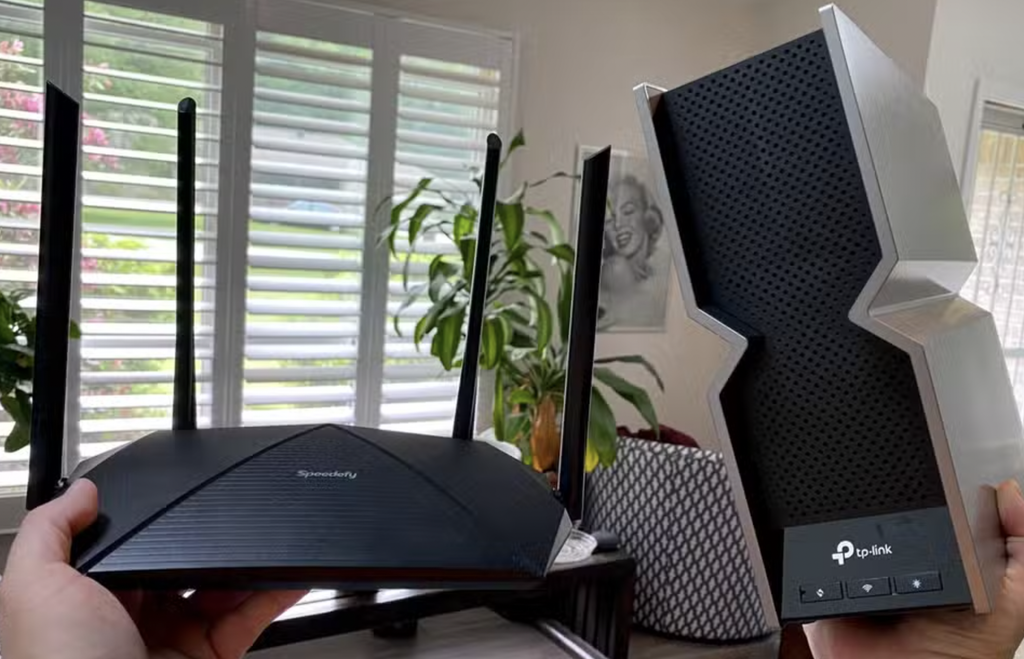
Wi-Fi is radio, and radio does not stop politely at your front door. A router placed beside a window can send a strong signal into the street, where anyone with a phone can see your network and try to join. Moving the router toward the middle of the home, away from outside walls, keeps the best signal where you use it and reduces what spills outward. This is not a substitute for encryption, but it removes easy opportunities and often improves your own speeds as well.
Many routers also let you lower the transmit power or choose between frequency bands. Most modern models broadcast on two or three bands, with the lower band reaching farther through walls and the higher bands giving faster speeds over shorter distances. If your home is small, you may not need maximum power, and reducing it is a harmless way to shrink the reach of your network. Test any change by walking through the home with a phone, because a setting that leaves a bedroom without signal will only tempt you to undo your work.
Placement matters for another reason. A router tucked into a cabinet or behind a television is awkward to reach, so people avoid touching its settings, and a router in a hallway that visitors pass can be reset by a curious hand. Keep it somewhere visible to you but not easy for guests to interfere with, and cover or note the sticker that lists the default login. Anyone who can read that sticker can try its password, so after you have changed the credentials, the sticker should no longer match reality.
Guest networks and device separation limit the damage
A guest network is a second wireless network on the same router, kept apart from your main one. Visitors can reach the internet but cannot see your laptops, file shares, printers or cameras. If a visitor’s phone happens to carry malicious software, it stays on the outer network instead of the inner one. Most routers sold in recent years include this feature, though it may be labeled guest access, visitor network or something similar.
When you create the guest network, give it its own name and its own strong passphrase, and make sure the option that isolates guests from your main devices is switched on. Some routers also offer client isolation, which stops devices on the same guest network from talking to each other. This is useful in a shared building but may break features such as casting to a television, so test it before relying on it. Setting a time limit or bandwidth cap is optional, but handy if you do not want guests using up your connection.
Parents may also want to look at the parental or family features that many routers include. These can pause the connection for chosen devices at set hours, filter categories of websites, or show which devices use the most data. Such tools are not perfect, since a determined teenager can find ways around them, but they support a household conversation about screen time. Protect the settings with the administrator password so that nobody can quietly switch them off.
The same idea works for smart-home gadgets. Cheap cameras, plugs, light bulbs and appliances often receive few updates, and a compromised one can become a stepping stone to your computers. Putting them on the guest network, or on a dedicated network for gadgets, keeps them away from the devices that hold your files and accounts. The trade-off is that some gadgets need to talk to your phone on the main network during setup, so you may need to join them to the main network briefly and then move them.
Here is a simple way to decide where each device belongs. Use the table below as a checklist, and adjust it to the devices in your own home. When in doubt, place a device on the less trusted network and move it only if it stops working.
| Device type | Suggested network | Reason |
| Work laptop, personal computer | Main | Holds accounts and files |
| Phones of household members | Main | Needs access to shared devices |
| Visitors’ phones | Guest | No need to reach your devices |
| Smart plugs, bulbs, cameras | Guest or separate | Often receive few updates |
| Smart televisions and streaming sticks | Guest or separate | Internet access only |
| Printers and network storage | Main | Need to be reachable at home |
Switch off features you do not use
Every feature on a router is another thing that can be misconfigured or attacked, so turning off what you do not need is one of the cheapest forms of protection. The best known example is WPS, short for Wi-Fi Protected Setup, which lets a device join by pressing a button or entering a short number. The PIN method has a well-documented weakness that lets attackers guess it in a manageable number of tries. Disable WPS completely, and add new devices by typing the passphrase instead.
Another feature to review is UPnP, which allows devices on your network to ask the router to open ports automatically. It is convenient for games and some applications, but it can also let malicious software open doors without your knowledge. If everything works without it, turn it off. If a game or console breaks, you can turn it back on or create a specific port rule for only that device.
Also check for port forwarding rules, which send traffic from the internet to a particular device, and remove any that you no longer recognize. Look at the remote management setting mentioned earlier, and any cloud account the router maker offers. Cloud features can be convenient, but they also tie your router to an online account, so protect that account with a strong password and, if offered, two-step verification. If you do not use the cloud features, disable them.
Do not rely on MAC address filtering as your main defense. It restricts devices by the hardware address of their network card, but those addresses can be observed and copied by anyone with basic tools. It can still serve as a minor extra layer for a small number of fixed devices, though it becomes tedious to maintain. Put your effort into strong encryption, a long passphrase and updates, which provide far better protection for the time spent. The same reasoning applies to hiding the network name, which adds inconvenience without stopping a motivated person.
Two further settings deserve a look. The first is the DNS server, which translates website names into addresses. Some malicious software changes this setting on a router so that visitors are sent to fake pages, so check that it matches what your provider or a trusted public service supplies. The second is the firewall, which should stay on in its default mode, and logging, which if available is worth enabling so you can later see unusual connection attempts.
Conclusion: What to do first
If you only have thirty minutes, work through the steps in order of impact. First, log in to the router and change the administrator password, then turn off remote management. Second, set the wireless security mode to WPA3 or WPA2 with AES and choose a long passphrase made of several unrelated words. Third, update the firmware and turn on automatic updates. Fourth, disable WPS and UPnP, and create a guest network for visitors and smart gadgets.
Once those basics are done, take a look at the list of connected devices, which most routers show on a status or device page. Go through it and name every entry you recognize, such as phones, laptops, television and printer. Anything unfamiliar deserves attention: it could be a gadget you forgot about, a neighbor who guessed an old password, or something worse. If you cannot identify a device, change the Wi-Fi passphrase and reconnect only your own equipment, then check the list again.
If you want extra reassurance, run a simple test of your own work. From a phone on mobile data rather than your home Wi-Fi, try to open your router’s address in a browser, and confirm that the settings page does not load. Then join the guest network and try to reach a shared printer or storage drive, which should fail if isolation is working. These two checks take minutes and show whether the most important protections are active.
Write down the changes you made and keep the note, together with the router’s model label and the administrator password, in a safe place. If something goes wrong and you must reset the router to factory settings, that note will save you from starting over. Keep in mind that a factory reset erases all your changes, including the passphrase, so you must repeat the steps afterward. Never leave the router on its default state after a reset.
Finally, set a reminder to review the router every few months. Check for updates, glance at the device list, and confirm that the settings have not changed. If you are unsure about a setting, or if your provider controls the router and will not let you change it, contact their support team or ask a trusted technician. A router that is updated, encrypted with a strong mode and protected by two different long passwords gives ordinary households a very strong position against most threats.