

A phone that reports full storage always picks the worst moment, such as when a child is about to blow out the candles or when an update is needed before a trip. For most people the cause is not anything dramatic, just years of photos, videos and chat media piling up quietly.
In this article we will explore how to read your storage screen, back up what matters, remove what does not, and set the phone up so the warning stays away.
Reading the storage screen before you delete anything
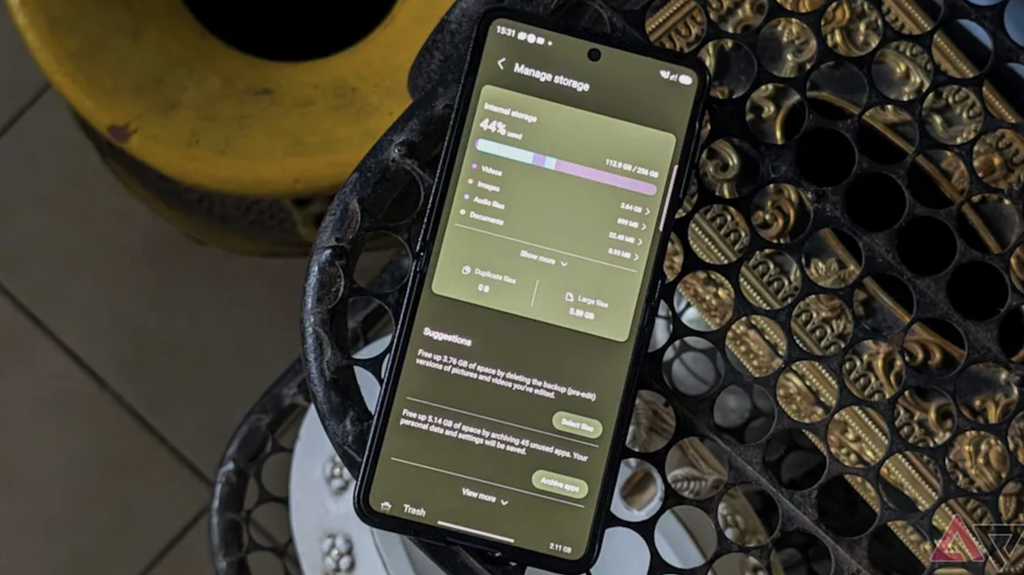
Deleting things at random is the slowest way to clear a phone, and it is also the riskiest. Two minutes spent reading the storage screen tells you where the space went, so that the first deletion is also the biggest one. On almost every phone this screen lives in the settings under a heading such as storage or general, and it shows a coloured bar split into categories.
Where the numbers come from
The bar usually separates photos, apps, media, documents and a few system categories. Tap into each one and the phone lists the worst offenders at the top, often with the size beside each name. It is common to find that one or two items account for a surprising share of the total, for example a video editing app with a large project cache, or a messaging app holding years of forwarded clips.
A simple test is to ask which single item, if removed, would free the most room, and then ask whether it can be recovered afterwards. Anything that lives safely online or on another device, such as downloaded music, streamed films saved for offline viewing, or an app you can reinstall for free, is a cheap deletion. Anything that exists only on the phone, such as original photos or voice recordings, needs a backup before it goes.
Before you start, note the free space figure on a piece of paper or in a note. After each round of cleanup, check it again. Seeing that a step freed two gigabytes, while another freed almost nothing, teaches you which habits matter on your own phone, and it stops you wasting an evening on tasks that barely move the number.
The category called system or other
Many readers are alarmed by a large block labelled system, other or something similar. This area holds the operating system itself, temporary files, caches, downloaded update packages and indexes used for search. Some of it is fixed, and some of it grows and shrinks on its own.
You cannot delete the fixed part, and you should be sceptical of any app that promises to clean it for you. What you can do is reduce the flexible part by restarting the phone, installing pending updates so that the old download package is removed, and clearing caches from apps that bloat. If the system category stays enormous after that, the phone-maker’s support pages are the right next stop, because the cause differs between brands and between operating system versions.
Backups come before deletion
The order matters here. The phrase without losing memories in the title depends entirely on this step: make a second copy of anything irreplaceable, check that the copy opens, and only then remove the original from the phone. People who skip this step are the ones who end up writing to a support forum about a lost year of pictures.
Cloud photo services
Every major phone platform offers a cloud service that copies photos and videos to online storage whenever the phone is on Wi-Fi. This is the easiest backup because it runs by itself. The free tier is usually small, so most households end up either paying a modest monthly fee for more room or choosing a different method for the bulk of their library.
Be careful with the idea that syncing equals backing up. Many services mirror your library, which means that deleting a photo on the phone can delete it everywhere. The setting that matters is whether the phone may remove local copies while keeping the originals online, and the wording differs by service. Read it twice before switching it on.
A computer or an external drive
Copying a camera folder to a laptop, or to a small external drive, costs nothing beyond the drive itself and keeps the pictures in your own hands. The method is plain: connect the phone with a cable, open the photos or camera folder, and copy the whole thing to a dated folder on the computer. Do the same for videos, which are often stored separately.
The weakness is that one copy on one drive is not much of a backup. Drives fail, laptops are stolen and spilled drinks happen. A sturdier habit is to hold the photos in two places, for instance the computer plus a cloud service, or two separate drives kept in different rooms.
Testing the backup
Before deleting anything, open a few files from the backup. Choose an old one, a recent one and a video, and check that each plays properly and has the right date. A backup that was never opened is a hope, not a backup. The table below compares the usual choices so you can decide which combination fits your household.
| Backup choice | Good for | Watch out for |
| Phone maker’s cloud service | Automatic copies with no effort | Small free allowance, sync that mirrors deletions |
| Third-party cloud storage | Working across different brands of phone | Terms and fees differ by provider and country |
| Computer with a cable | Full-quality originals at no running cost | Manual, easy to forget for months |
| External drive | Large libraries, offline safety | Drives fail, so keep a second copy |
| Home network storage | Families who want one shared archive | Setup effort, still needs an offsite copy |
Photos and videos usually hold the biggest savings
Once a backup exists, the camera roll is almost always where the real gain is. Phones now record high-resolution photos and long videos by default, and the files add up quickly. A few short sessions of tidying will often free more room than removing a dozen apps.
Videos first
Sort the library by size if your phone allows it, or open the videos album and look at the durations. A single long clip, such as a school concert filmed from the back row, can take as much space as hundreds of photos. Ask whether you will ever watch it again, and whether a shorter trimmed version would do. Trimming in the gallery app and saving only the part you need is often possible without any extra software.
Settings are the other lever. Most phones let you choose a lower video resolution or frame rate in the camera settings. For everyday family clips that will be viewed on a phone, a lower setting is a fair trade, while for anything you might edit or show on a large screen later, keep the higher quality.
Duplicates, screenshots and burst shots
Screenshots are a quiet source of waste. People take them of parking signs, delivery codes and recipes, and then forget them forever. Most photo apps put screenshots in their own album, which makes a bulk review easy. Scroll through, keep the few that matter and delete the rest.
Burst photos and near-identical shots of the same scene come next. Some gallery apps now suggest duplicates or similar images, which saves time, but check each suggestion rather than approving all of them at once. Keep the best frame of a group, not the first one the app offers.
Live photos, panoramas and edited copies
Several camera modes store more than one file per shot. A short moving clip saved beside a still, a panorama stitched from many frames, or an edited version kept next to the untouched original all take extra room. If you have edited a picture and are happy with the result, ask whether you still need the unedited original. For family photos I would keep both, since edits can be reversed, but for something like a photo of a whiteboard or a receipt the original is rarely worth keeping.
Old edited copies sent to other people are another source. When you share a picture through a chat app, the phone sometimes saves a resized copy in your gallery too, so the same moment can appear three times. A slow scroll through one month at a time, rather than the whole library, makes these repeats easier to spot.
The recently deleted folder
Here is a detail that catches people out. On most phones, deleted photos go to a recently deleted or trash folder and remain there for a period, commonly around thirty days, before they are removed for good. They still count against your storage while they sit there. After you have finished a cleanup and confirmed the backup, open that folder and empty it, or the numbers on the storage screen will barely move.
Optimised copies on the phone
Some platforms can keep smaller preview versions on the phone while the full-quality originals live in the cloud. This setting can release a large amount of room without removing a single picture from view. The trade-off is that opening an old photo at full quality needs a connection, so it suits people who are nearly always online and is a poor fit for someone who travels with patchy signal.
Messaging apps keep copies you forgot about
Chat apps are the most overlooked source of lost space. Every photo, video, voice note and document sent to you may be saved to the phone, and group chats can be relentless. A family group that shares clips every day for two years can quietly build up a very large folder that never appears in your camera roll.
Most messaging apps have a storage management screen in their settings that lists chats by size. Open it and sort from largest to smallest. The top three or four chats usually account for most of the media, and from there you can clear large items from a chat while keeping the text conversation intact. Look for options to review items larger than a certain size, which is quicker than scrolling a whole conversation.
Voice messages deserve a separate mention. A relative’s recording may matter far more than its tiny size suggests, so listen before you delete, and save the precious ones to a folder that your backup covers. The same goes for scanned documents and photos of paperwork, which people often leave inside chats as a makeshift filing system.
Think before clearing. If a friend sent you a wedding video that you have not saved elsewhere, it may exist only in that chat. Save the ones you care about into your photo library, which is then covered by your backup, and delete the rest from the chat. It takes ten minutes and tends to free more room than people expect.
Then look at the automatic download settings. Many apps download every incoming photo and clip by default, whether or not you open it. Switching this to manual, or to Wi-Fi only with photos but not videos, stops the same pile forming again. Voice notes are small but numerous, so clearing old ones from busy chats is worth a pass too.
A practical way to handle a very busy group chat is to do the cleanup in two passes. In the first pass, delete the obvious clutter: good morning greetings, repeated memes, clips that were forwarded to the whole family. In the second pass, look at what remains and move the few worth keeping into a folder or album called something like saved from chats. Within a couple of sessions the habit becomes quick, and the chat itself stops being a storage problem.
If you share the phone with a child, check their games and video apps separately. Children tend to record many short videos of everyday nothing, and these add up faster than adult libraries. Sit down together and let them choose what to keep, which usually works better than deleting without asking.
The same advice applies to email attachments and to apps for sharing documents, which often keep offline copies of files you opened once. If the storage screen shows a mail or documents app holding a surprising amount, its own settings usually include a way to clear downloaded attachments without touching the messages themselves.
Apps, caches and offline downloads
After media, apps are the second big category. The mistake is to delete a famous app you never use and expect a miracle, when the real weight sits in one or two that you do use every day.
Apps you have not opened in months
Sort the app list by size, and next to each large one ask when you last used it. Games are frequent culprits, since some run to several gigabytes. Reinstalling an app later is usually free, and purchases or progress are normally linked to your account, so removal is lower risk than it feels. Check that the app saves progress online before you remove it, because a few store data only on the device.
Some phones can offload an app, which removes the program but keeps its documents and settings. That can be a gentle middle path for something you use only a few times a year, such as an airline or ticketing app.
Caches that grow without limit
Social, video and browsing apps keep caches so that content loads faster. These are safe to clear, because the app rebuilds them as you use it, but the result is temporary if you keep using the app heavily. On some phones the cache can be cleared from the app info screen in settings, while on others the only route is the app’s own settings, or removing and reinstalling the app. The method differs by brand and system version.
Do not clear the data of an app unless you are sure of what it holds. Clearing cache removes temporary files, while clearing data can sign you out and delete local settings, saved drafts or offline content.
Offline music, films and podcasts
Streaming apps let you download content for offline listening, and these downloads are easy to forget. Open the library section of each music, video and podcast app and look for a downloads view. Remove anything you no longer play, and set the app to delete watched or listened episodes automatically if it offers that option.
The browser deserves a look as well. Saved offline pages, large download folders and old installers sometimes sit in a downloads folder that you have never opened. A quick look in the files app is worthwhile, and it is where forgotten documents, zip files and old installers often turn up.
Settings that keep the problem from returning
A cleanup is temporary unless a few habits change. The aim is to make the phone manage itself so that you do not have to repeat the exercise every spring.
Start with the camera. Choose a video resolution that matches what you really do with the clips. If you take thousands of photos, consider whether your phone offers a space-saving photo format, and note that some formats may not open on older software, so check with the people you share with before switching.
Next, put the backup on a schedule. A cloud backup that runs on Wi-Fi while charging needs no attention, but a manual computer copy needs a reminder, perhaps on the first weekend of each season. Pick a date that you will remember, such as after a holiday or a birthday, when the phone is full of new pictures.
Then tell the phone to clear its own clutter. Many devices can remove old downloads, watched episodes and temporary files on a rolling basis, and some messaging apps can expire media after a chosen period. Use these features where they exist, but read the wording, because auto-delete rules that apply to the originals rather than the copies can cause trouble.
Finally, keep an eye on a sensible cushion. A phone that is almost completely full tends to run slowly, fail to install updates and refuse to save new photos. A commonly given rule of thumb is to leave a noticeable margin free, though the exact amount varies by phone and by how much you record. If the free space keeps shrinking back to nothing within a few weeks, the usual cause is a runaway app or an automatic download, and the storage screen will name it.
It also helps to separate two kinds of photos in your mind: the ones you look at, and the ones you keep just in case. The first kind belong on the phone, since you open them often, and the second kind belong in the backup, where they cost nothing to carry. Many people find that moving everything older than a year off the phone, while keeping the backup intact, solves the problem for good and leaves the phone feeling lighter.
If your phone has an expandable card slot, a card can be a useful home for photos and videos, but treat it as a convenience and not a backup. Cards fail without warning, so the same rule applies: keep a second copy elsewhere. Many newer phones have no slot at all, so the larger internal storage option at purchase is the only way to add room. When you buy your next phone, it is usually wiser to pay for more storage than to cope with a constant warning for the next few years.
A sensible order of choices
If you are staring at a full phone right now, work through the following order, because it frees the most room with the least risk. First, confirm that your backup exists and opens, since everything else depends on it. Second, empty the recently deleted folder in your gallery, but only after you have checked that nothing in it is wanted.
Third, review the largest videos and trim or remove the ones you will not watch again. Fourth, open your messaging apps’ storage screens and clear the large media from the busiest chats, after saving anything precious. Fifth, remove apps you have not used in months, starting with the biggest. Sixth, clear caches and offline downloads. Seventh, change the settings described above so the space does not fill again.
Stop as soon as you have comfortable headroom. There is no prize for the emptiest phone, and some deletions, such as cache clearing, simply make the phone rebuild what you removed. If you reach the end and the phone is still tight, the honest answer may be that the library has outgrown the device, and the better fix is moving the bulk of it to a computer, a drive or paid online storage, then keeping only recent items on the phone. One last practical point: leave yourself a note in your calendar to repeat a short version of this routine twice a year. A fifteen-minute check, with the backup test first, is far cheaper than an emergency cleanup in front of a birthday cake.
If something goes wrong, such as photos vanishing after a sync or a backup that will not open, stop deleting and stay calm. Recently deleted folders, cloud trash areas and the phone-maker’s support pages are the places to look first, and a repair shop or data recovery service is the next step for physical failures. Acting quickly and writing less new data to the phone give the best chance of a recovery.
Frequently Asked Questions
Why does my phone say storage is full when I have deleted lots of photos?
Deleted photos usually sit in a recently deleted folder for a few weeks and still count as used space. Open that folder and empty it, then restart the phone and check the storage screen again.
Is it safe to clear the cache on my phone?
Yes, clearing cache is generally safe, because apps rebuild those temporary files. Avoid clearing an app’s data unless you are sure of the result, since that can sign you out or remove local settings.
How much free space should I keep on my phone?
There is no single number, but a noticeable margin helps updates, photos and general speed. A commonly given rule of thumb is to avoid running the phone close to full, and to check again if the free space keeps shrinking.
Does deleting a photo from my phone delete it from the cloud?
It depends on the service and your settings. Some services mirror deletions everywhere, so check how yours treats removed items before you tidy up.
Can I move photos to a computer without paying for cloud storage?
Yes, connect the phone with a cable and copy the camera folder to a dated folder on the computer. Keep a second copy on a drive or another computer, because a single copy is easy to lose.
Will an app that promises to clean my phone help?
Usually it offers little that the built-in storage tools do not already do. Be wary of apps that ask for broad permissions, show alarming warnings or push paid upgrades.