

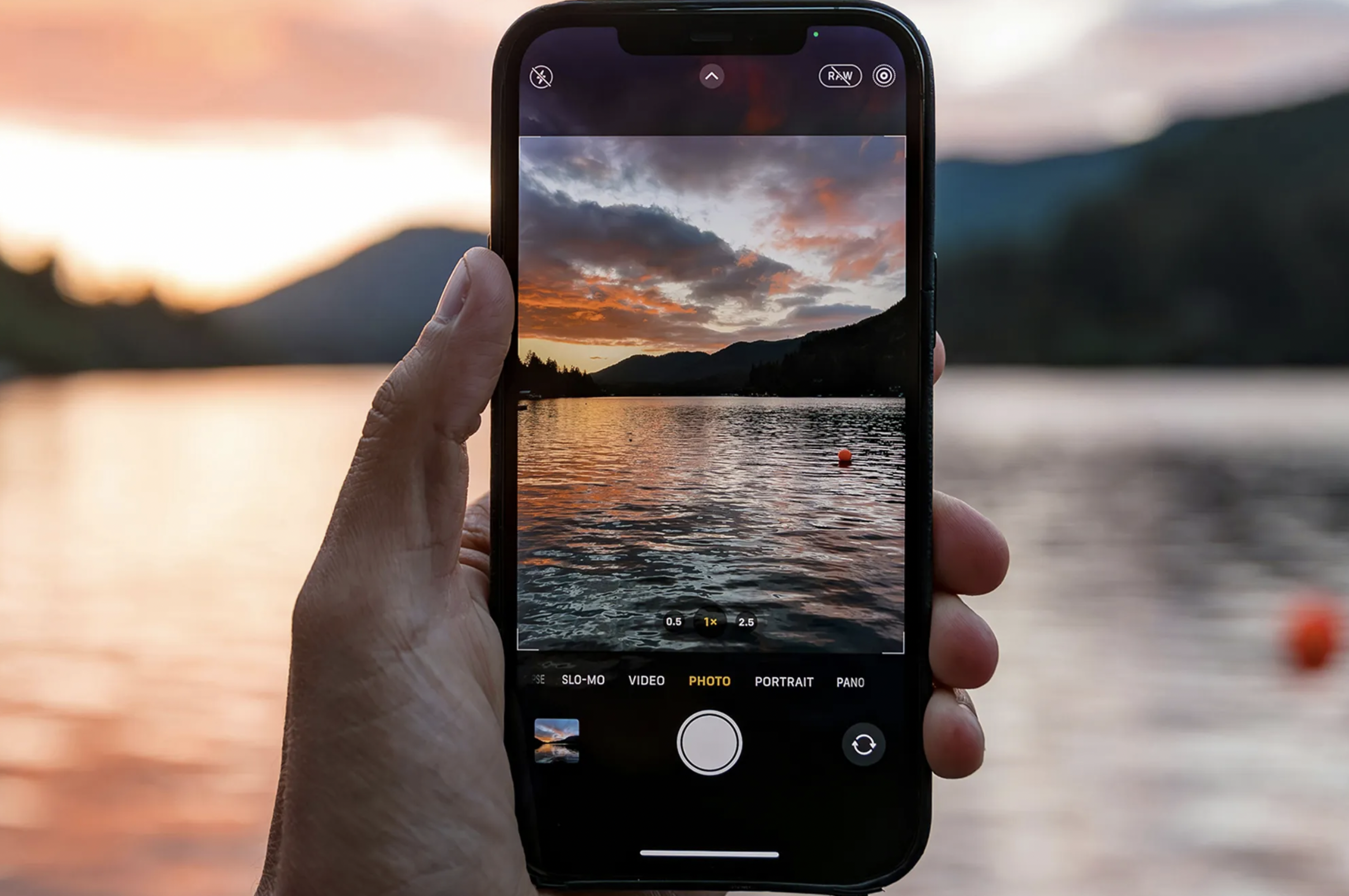
The camera in your pocket is probably more capable than the one you are using it as, because most people never look beyond the shutter button. Small changes to settings and habits can improve sharpness, color and low-light results on almost any phone made in the last several years.
In this article we will discuss the simple fixes that matter most, including lens care, grid lines, focus and exposure, light, HDR and night modes, zoom, file formats and storage, and then offer a short plan you can follow today.
Clean lenses and steady hands come before any menu
The most common reason for a soft or hazy picture is not the phone but a greasy lens. Pockets, bags and fingers leave a thin film over the glass, and that film scatters light into a milky glow, especially around bright lamps or the sun. Before an important shot, wipe the lens gently with a soft microfiber cloth, such as the one used for eyeglasses. Avoid rough fabric, paper towels and harsh cleaners, which can scratch coatings.
Camera shake is the second quiet culprit. When light is dim the phone keeps its shutter open longer, and a small movement of your hands turns into a blurry result. Hold the phone with both hands, tuck your elbows against your body, and take a slow breath before pressing the button. Many people find that pressing the volume key or using the timer for two seconds gives a steadier shot than tapping the screen.
For still scenes, you can add support from the world around you. Rest your elbows on a table, lean against a wall, or place the phone on a stack of books or a small tripod. A cheap tripod, a stand or even a phone case that props itself up lets you take sharp low-light photos without buying anything expensive. If your phone has optical stabilization, it helps, but it cannot remove every movement.
Finally, check any protective cover on the lens. A cracked screen protector, a case with a badly fitted camera cutout, or a clip-on accessory lens can reduce clarity or create dark corners. Remove accessories while you test, take a photo of a bright, detailed scene, and zoom in to see whether it looks crisp. If the image looks soft in one corner or shows a ring of light, the cover or the lens needs attention.
Grid lines and framing improve pictures at no cost

Open the camera settings and look for a grid option, sometimes called gridlines or composition guide. Turning it on overlays two horizontal and two vertical lines across the screen, dividing the frame into nine parts. These lines help you keep horizons level and place your subject in a pleasing position. A tilted horizon is one of the quickest ways to make a photo look careless, and a grid solves it instantly.
The idea behind the grid is the rule of thirds, a long-standing guideline in painting and photography. Instead of placing a person or object in the exact center, put them along one of the lines or where two lines cross. A landscape often looks stronger when the horizon sits on the upper or lower line rather than in the middle. The rule is only a starting point, and a centered, symmetrical shot can work well for reflections, buildings and portraits.
Framing also means paying attention to what is behind and around your subject. Before pressing the shutter, scan the edges of the screen for distractions such as a pole growing out of someone’s head, a bright sign, or clutter on a table. A small step to the left or right, or a lower viewpoint, often removes the problem. Photographing children and pets from their eye level, instead of from above, usually creates a more appealing picture.
Try shooting a few versions of the same scene: one wide, one closer, and one from a different angle. Storage is cheap compared with a missed moment, and you can delete the weaker ones later. Turn the phone sideways for wide scenes like crowds and views, and keep it upright for tall subjects such as doorways and people standing. Practicing these simple habits for a week will teach your eye more than any menu will.
Pay attention to the foreground too. A slightly closer object at the edge of the frame, such as a branch, a doorway or a railing, adds depth and leads the eye toward the subject. Keep it simple and avoid crowding the picture with too many competing elements. Clutter at the edges is easy to miss on a small screen, so zoom the preview with your eyes and scan each corner before shooting. Looking at the finished photo for five seconds and asking what you would remove usually points to the next improvement.
Focus and exposure controls fix most disappointing shots
Every phone camera tries to guess what you care about, and sometimes it guesses wrong. Tapping the screen on your subject tells the camera where to focus, and it usually adjusts the brightness for that spot as well. If a face looks too dark against a bright sky, tap the face. If a flower in the foreground looks fuzzy, tap the flower and wait for the focus square to settle before you press the shutter.
After you tap, most phones show a small sun symbol or a slider beside the focus point. Dragging it up makes the picture brighter, and dragging it down makes it darker, which is called exposure compensation. This is the best fix for scenes with strong contrast, such as a snowy day that looks gray or a sunset that washes out. Slightly lowering the brightness protects bright areas like clouds and lamps, while raising it helps backlit people.
On many phones, pressing and holding on the screen locks focus and exposure so they stay put while you reframe the shot. This is handy when you want to place a subject off-center, or when the camera keeps hunting between near and far objects. The lock usually releases when you tap elsewhere or move the phone a lot. Look for a small banner on the screen that confirms the lock, because the wording and behavior differ between phones.
Certain phone cameras include a white balance control, which fixes color casts such as a yellow tint under warm indoor bulbs or a blue tint in shade. Automatic mode is good in most situations, but if skin looks orange or a white wall looks green, try a preset for daylight, cloudy or indoor light. If your phone has no manual control, move the subject near a window instead, since natural light usually brings the color back to normal. Editing tools can fix small color problems later, but correct exposure at the time of shooting gives better results.
Moving subjects add another challenge for focus. Phones usually track a face or a tapped object, but fast movement can fool them, so tap the spot where the action will arrive and shoot a short burst. Pets and children are easier to catch when you are at their level and the room is bright. If your phone has a mode for tracking subjects, test it on a familiar moving object before an important event.
Light matters more than megapixels
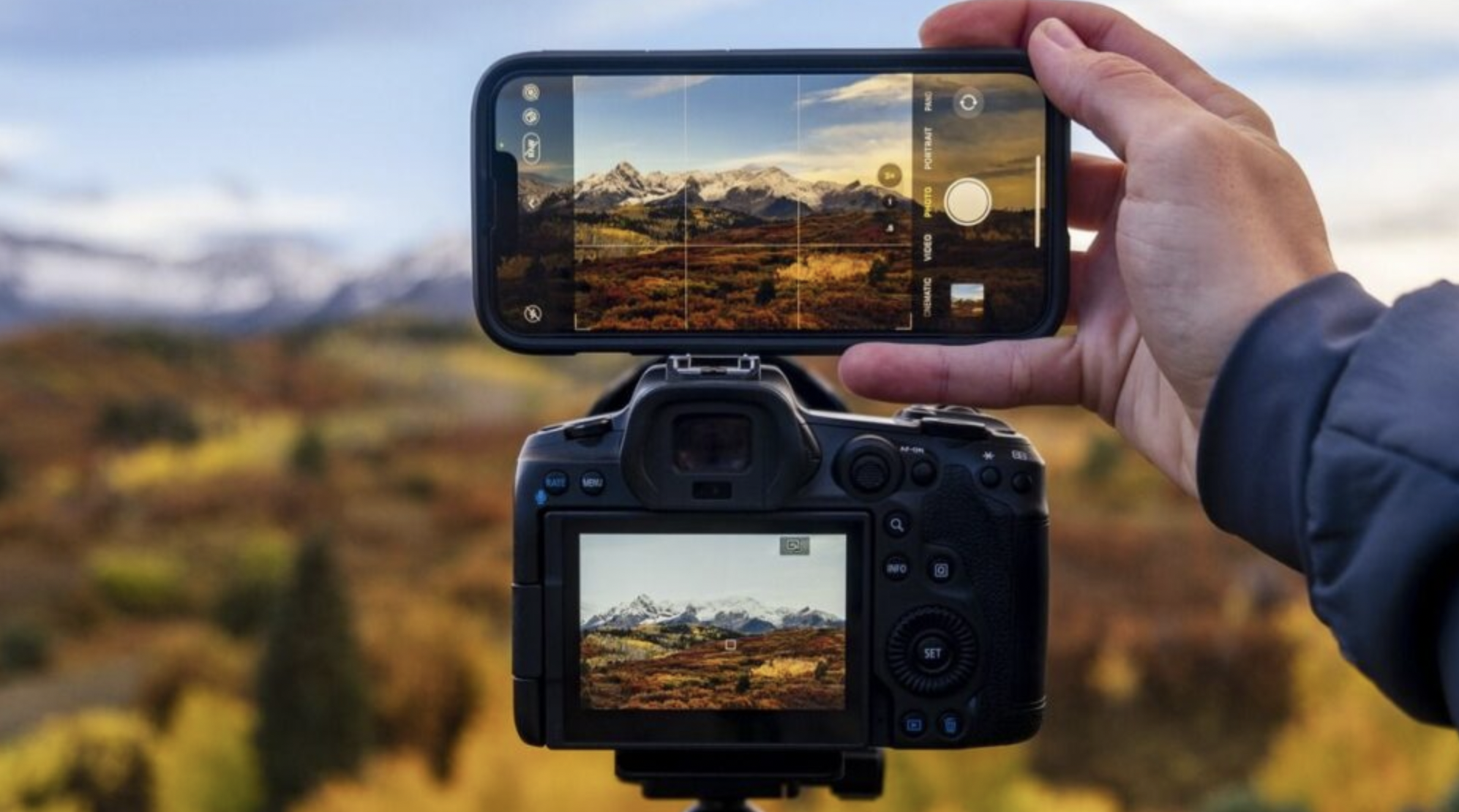
A photograph is a record of light, and the quality of the light usually decides the quality of the picture. A phone with a small sensor collects less light than a large camera, so it struggles most when conditions are dim. That is why the same phone can produce a crisp picture outdoors and a grainy one in a restaurant. You can improve almost any photo by choosing a better position for your subject before you adjust a single setting.
Soft light is the easiest to work with. A window with daylight, an open shade on a sunny day, or the hour after sunrise and before sunset all give gentle shadows and warm color. Harsh midday sun creates deep shadows under eyes and noses and bright patches on skin. If you must shoot in strong sun, turn your subject so the light falls from the side, or move them into the shade of a building or tree.
Direction matters as well. Putting a window behind your subject creates a silhouette, because the camera exposes for the bright background, so face the subject toward the window instead. When you want a dramatic outline, such as a person against a sunset, use that effect on purpose and tap the bright sky to keep the colors rich. A white sheet, a pale wall or a sheet of card can bounce light back into shadows if you hold it near the subject.
Indoors, switch on extra lamps and open curtains before you reach for the flash. Mixed lighting from different bulbs can create odd color, so turn off the ones that look the wrong shade when practical. The table below compares common lighting situations and the simplest fix for each. Use it as a checklist when a photo disappoints you, and you will usually find the cause in the first column.
| Situation | Typical problem | Simple fix |
| Subject in front of a window | Dark face, bright background | Turn the subject to face the window, or tap the face |
| Midday sun | Harsh shadows, squinting | Move to shade or shoot from the side |
| Dim indoor room | Grain and blur | Add lamps, use night mode, hold steady |
| Mixed lamp colors | Orange or green tint | Turn off the odd lamp or adjust white balance |
| Sunset or sunrise | Sky too bright, foreground dark | Tap the sky, lower exposure, or use HDR |
| Snow or sand | Scene looks gray | Raise exposure slightly |
HDR, night mode and flash each have a job
HDR stands for high dynamic range, and it combines several quick exposures into one picture so that both bright and dark areas keep detail. On most phones it is automatic and works quietly in the background, which is why skies and shadowed faces look better than they did years ago. If you see a setting for HDR, leaving it on automatic is a sensible choice. Turning it off can look more natural in a few scenes, but it will cost you detail in scenes with strong contrast.
Night mode is a different tool, and it takes a longer exposure or a burst of frames to brighten dark scenes. You usually need to hold the phone still for a few seconds while a timer counts down on the screen. Moving subjects can look blurred, so it works best for streets, buildings, landscapes and still objects. If the result looks too bright and unnatural, many phones let you reduce the brightness or switch the mode off.
The flash has a bad reputation because the small light on a phone is harsh and close to the lens. At arm’s length it can flatten faces, cause red eyes and leave a dark background. Use it sparingly, mainly to fill in shadows on faces outdoors or to light a nearby object in a very dark room. In most other cases, extra lamps, a steady hold and night mode produce a softer result than flash.
Portrait mode blurs the background to make a person stand out, and the effect is created by software that estimates depth. It works best when the subject stands a little away from the background, with good light on the face. Expect occasional mistakes around hair, glasses or fingers, so check the edges before you share the picture. If the blur looks fake, try lowering its strength after the shot, which many phones allow in their editing tools.
Zoom and lens choices change image quality
Zooming on a phone can mean two very different things. Optical zoom uses a real lens with a longer focal length, so the image stays sharp, while digital zoom simply crops the picture and enlarges it. The more you use digital zoom, the softer the details become, and software sharpening cannot fully recover what the sensor never captured. If your phone has a separate telephoto lens, the camera will switch to it at certain zoom levels, usually marked on the screen.
Many phones also have an ultra-wide lens, which fits more into the frame and is excellent for rooms, groups and landscapes. These lenses can distort the edges of the picture and often have smaller sensors, so they struggle more in dim light. The main lens normally gives the best quality, and the front-facing camera is usually weaker than the rear one. When quality matters, use the rear main lens for portraits of people and step back instead of using the wide lens close to a face.
In most cases the better answer is to walk closer to your subject. Moving your feet gives you more detail, better perspective and a clean image without any cropping. If you cannot get closer, take the photo at the lowest zoom that frames the shot, then crop afterward while you still have the original. A modern phone sensor records plenty of detail, so a modest crop usually looks fine on a screen or a small print.
For a quick test, take the same scene at the standard view, the zoom you normally use, and the maximum zoom, then view all three at full size on a computer. You will probably see that the first two look similar and the last looks smeared. Knowing where your own phone starts to lose quality tells you how far to push it. Repeat the test in dim light as well, because digital zoom and wide lenses suffer most when the camera has little light to work with. That small experiment often changes the way people take photos for the better.
Burst mode and live capture rescue moments that move
Children, pets, sports and street scenes rarely hold still, and a single tap often catches the blink or the blur. Burst mode takes a rapid series of frames while you hold the shutter, and on many phones you start it by sliding the button or holding a volume key. Afterward you can scroll through the series and keep the sharpest frame, then delete the rest. Because bursts fill storage quickly, clear them out within a few days.
Some phones also record a short moment before and after each press, often called a live or motion photo. This lets you pick a better frame later, or share a tiny clip, and it is helpful when a subject moves unpredictably. The trade-off is larger files and slightly different sharing behavior, since some apps show only a still image. If you rarely use the feature, turn it off in the camera settings to save space and avoid confusion.
The self-timer is another quiet helper. Setting a three or ten second delay lets you place the phone on a steady surface, step into the frame and avoid shaking the device at the moment of capture. It also works well for group pictures, landscapes at dusk and close-up shots of small objects. Pair it with a stack of books or a stand, and you gain a small studio at no cost.
Finally, think about the front camera and the screen. Selfies often look better when the phone is held slightly above eye level and away from the face, with light coming from the front rather than above. Some phones apply smoothing or mirror the preview by default, so check the options if your pictures look different from what you expected. Turning off any beauty or smoothing effect usually restores natural skin texture, and you can add gentle edits afterward if you want them. A clean front lens matters here too, since it is touched even more often than the rear one.
File formats and resolution settings affect editing and storage
Most phones can save pictures in more than one format, and the default is usually a sensible compromise. JPEG is the universal format that opens everywhere, while a newer high-efficiency format makes smaller files with similar quality but may not open on older software. Some phones also offer a raw format, which stores much more information from the sensor and gives you room to recover shadows and highlights in an editing app. Raw files are large and need processing before sharing, so they suit enthusiasts rather than everyday snapshots.
Resolution settings are a trade-off between detail and space. Higher resolution produces larger files, and the extra detail is useful only if you plan to crop heavily or print large. Some phones also combine many small pixels into one larger pixel in dim scenes, which is why the standard setting often looks cleaner at night than the highest one. For everyday sharing, the standard setting is enough, and saving space means you can keep more photos before storage runs out. If you take a special photo of a view or a family occasion, switch to the highest setting for that shot and then change it back.
Video follows the same logic. Higher resolution and frame rate give smoother, sharper clips, but the files grow very quickly, and long recordings can fill a phone in minutes. Commonly used settings include 30 frames per second for general use and 60 for fast action, with the standard high-definition or ultra-high-definition options available on many phones. Check your free space before recording an event, and remember that recording in dim light can reduce quality at any setting.
Finally, protect your pictures. Turn on automatic backup to a cloud service or copy files to a computer or external drive on a regular schedule, so a lost or broken phone does not erase years of memories. Use the phone’s own editing tools for light corrections such as cropping, straightening, brightness and color, and avoid heavy filters that cannot be undone. Keep the original files where possible so you can try again later.
Name and organize your library as you go. Albums for trips, family events and documents make it easy to find a picture months later, and deleting near-duplicates each week keeps the collection manageable. If you photograph receipts, whiteboards or paperwork, use a scanning mode if your phone has one, because it flattens the page and boosts contrast. Think before sharing pictures of other people, especially children, and check the privacy settings of the apps you use, since photos can carry location details in their hidden data.
Conclusion: What to do first
Start with the quick wins that cost nothing. Wipe the lens, turn on the grid, and spend ten minutes practicing the tap-to-focus and exposure slider on objects around your home. Take the same scene in bright window light and in a dim corner to see how large the difference is. Use the lighting table in this article as your guide, and you will learn faster than from any manual.
Next, review your settings menu. Settings differ between phone makers and software versions, so spend a few minutes exploring rather than hunting for exact menu names. Check the photo and video quality choices, switch on automatic HDR and night mode if they are available, and decide on a file format that matches the programs you use. Confirm that your cloud storage or backup is working, and clear out duplicate or blurry images to free space. If you share photos often, test how they look on another phone or computer, because screens vary in brightness and color.
After that, practice one skill per week. In the first week, concentrate on steady hands and level horizons, then move on to using window light for portraits, and then to composing with the rule of thirds. In the following weeks, try night mode, portrait mode and different lenses, keeping notes about what worked. This steady approach builds habits that no new device can supply, and it makes photographs better on whichever phone you hold.
Consider buying a new phone only when you have a clear need that settings cannot meet, such as severe damage, a failing battery, no software updates, or a wish for features like a very strong telephoto lens. Many people who think they need new hardware are really facing a dirty lens, poor light or a shaky grip. Fix those first, and compare results before spending money. Ask friends to share sample photos taken on the phone you are considering, in conditions like your own, instead of trusting polished advertising images. If you do upgrade later, you will know exactly what you want, which is a better basis for any purchase.