

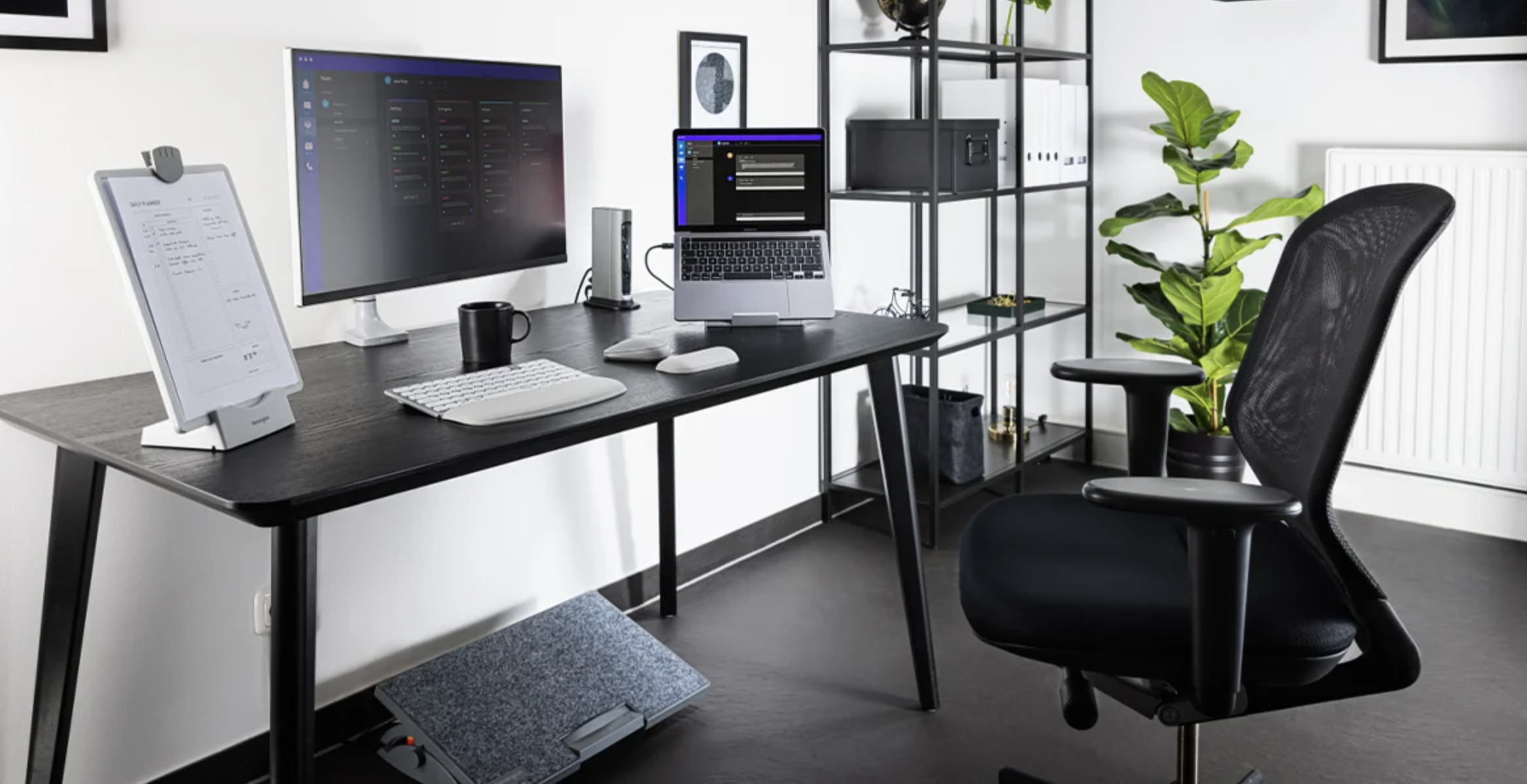
Working from a kitchen table or a spare corner feels fine for a day, then slowly turns into sore necks, tight shoulders and tired eyes. Most of that discomfort comes from small mismatches between your body and your furniture, and many of them can be fixed with cheap adjustments.
In this article we will discuss how to set a chair, desk, screen and keyboard to fit you, how to arrange the extras, and what habits keep a good setup working over a long week.
Your Body Sets the Measurements
Ergonomic advice sounds technical, but it comes down to one idea: the furniture should be adjusted to the person, not the other way round. A desk built for an average adult does not fit someone very tall or very short, and a chair that suits a colleague may leave your feet dangling. Instead of hunting for a perfect posture, aim for a set of neutral positions that keep your joints near the middle of their range and let you change position often.
Occupational health bodies describe those neutral positions in similar terms. Your feet rest flat on the floor or on a footrest. Your knees are roughly level with your hips, bent to about a right angle or slightly more open. Your back is supported, your shoulders are relaxed, your elbows hang near your sides at roughly a right angle or a little wider, and your wrists stay in line with your forearms. These are commonly recommended starting points, not rigid laws, and bodies differ.
A Quick Self-Check
Sit as you normally do for a minute, then notice where the strain is. Tension at the base of the skull usually points to a screen that is too low or too far forward. Pain between the shoulder blades often means the keyboard is too high or too far away. Numbness or tingling in the hands can come from pressure on the wrists or from a bent wrist angle. Write down what you notice before you change anything, so you can tell later whether an adjustment helped.
Why One Size Never Fits
Standard office guidance is built on ranges, and the ranges are wide. Differences in leg length, torso length and arm length mean two people of the same height can need different chair and desk settings. That is why photos and notes from your own day are more reliable than a chart. If a published measurement feels wrong in your body, trust the feeling, change it by a small amount, and test it for a few days.
Work From the Floor Up
Adjust in a fixed order, because each step depends on the one before. Start with the chair height, then the seat depth and back support, then the desk or keyboard height, and finally the screen. Changing the screen first and the chair afterwards means doing it twice. A tape measure and ten minutes are all you need, and a phone photo from the side will show you what you cannot see yourself.
The Chair Comes First
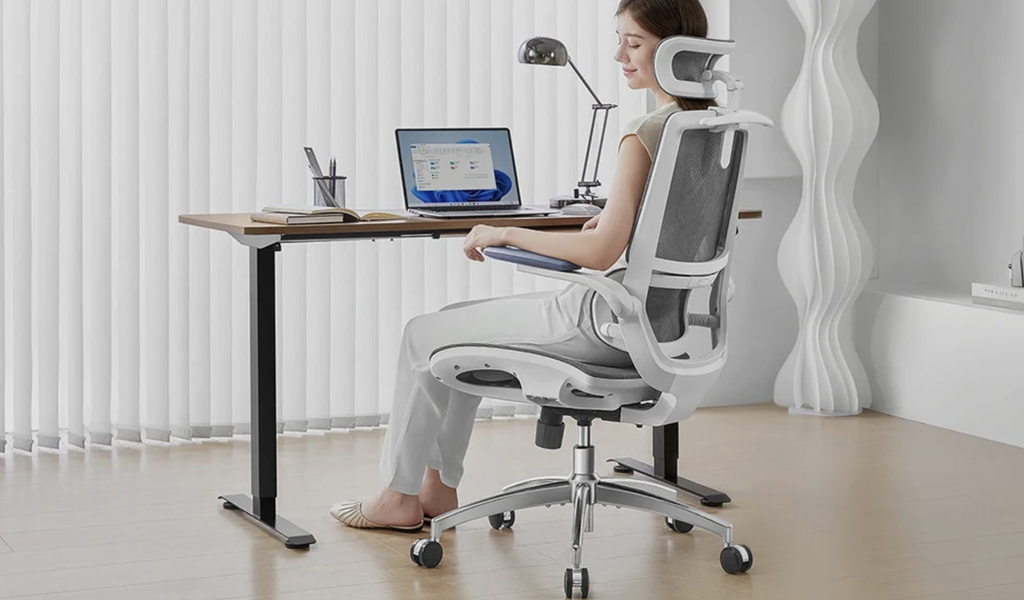
A good chair is the single piece of furniture where spending more tends to pay off, but price is not a guarantee of fit. What matters is the list of things it adjusts. Seat height, backrest support and, ideally, seat depth are the three that matter most. Armrests that adjust in height and width are useful, and a tilt mechanism that lets you recline slightly is worth having.
Seat Height and Depth
Set the seat so your feet are flat and your thighs are roughly level, with a little room under the front edge. If the desk is then too high for you, raise the chair and add a footrest instead of letting your feet hang. Seat depth should leave a gap of a couple of finger widths between the front edge and the back of your knees. If the seat is too deep, you will slide forward and lose the back support; if it is too shallow, your thighs lack support. Where the seat does not adjust, a firm cushion behind the lower back can shorten the effective depth.
Back Support and Posture
The backrest should meet the natural inward curve of your lower back. Many chairs have an adjustable lumbar support, and when they do not, a small rolled towel or a purpose-made cushion can fill the gap. The aim is a comfortable contact, not a forced arch. Do not expect any chair to hold you in one position for hours. Allow yourself to recline a little, lean forward, and shift around, since movement is part of the design.
Armrests
Armrests help only if they fit. Set them so your shoulders stay relaxed and your forearms rest lightly, without pushing the shoulders up. If they are too high, they cause shrugging; too low, and they are useless. When they collide with the desk edge and stop you from pulling in close, remove them or flip them out of the way.
Choosing a Chair When You Cannot Try It
If you cannot test a chair in person, read the list of adjustments carefully and check the return policy. A simple test, once it arrives, is to sit in it for a full hour of real work before deciding. Discomfort that appears after fifty minutes is the sort a showroom visit never reveals. Used office chairs from reputable business lines are often a better value than a new budget model, as long as the mechanisms still move smoothly.
Check the wheels and the base as well. Hard wheels suit carpet and slide too easily on smooth floors, while soft wheels suit hard floors, and the wrong match makes the chair either creep away or drag. A chair that drifts as you reach for something forces you to brace with your legs, which defeats the purpose of sitting comfortably.
Desk Height and the Keyboard
With the chair set, the desk surface should meet your forearms at about elbow height, so that your upper arms hang loosely and your forearms are roughly level with the floor. Standard desks are often a little high for shorter people and a little low for taller people. If yours is too high and cannot be changed, raise the chair and use a footrest. If it is too low, you can lift it on sturdy blocks, though stability matters, so use something designed for the purpose.
Keyboard Position
Keep the keyboard close enough that your elbows stay near your sides. Reaching forward for it loads the shoulders. Flat or slightly negative tilt, where the far edge is lower than the near edge, tends to keep wrists straighter than the little feet that tilt keyboards up. Do not rest your wrists on a hard edge while typing; use any wrist rest as a support during pauses and let your hands float while you type.
Mouse and Alternatives
Keep the mouse at the same level as the keyboard and close to it, so your arm does not reach out sideways. If your wrist or forearm aches after long sessions, try a larger mouse or a vertical design, or move some tasks to keyboard shortcuts. Swapping hands for part of the day is a surprisingly effective trick for some people. Persistent pain, numbness or tingling should be checked by a doctor or a physiotherapist rather than endured.
Touchpads, Tablets and Phones
Heavy use of a touchpad keeps the hand in a held position for long periods, so a mouse is gentler for long sessions. Tablets lying flat on a desk draw the head downward, and a stand or a case that props the device upright helps. For phones, the most useful habit is to lift the device toward your eyes rather than lowering your head toward it, and to dictate or use voice messages for long replies.
Sharing a Table With the Household
Many home workers use a dining table that is at the wrong height and has to be cleared each evening. A pragmatic answer is a small portable set: a laptop stand, a separate keyboard and mouse, and a cushion. That way you can build a decent setup in a minute and pack it away at the end of the day. It is not perfect, but it is far better than hunching over a laptop on the sofa.
Think about storage as part of the design. A basket or a drawer near the table makes packing away a thirty-second job, and that is what keeps the routine alive. If the setup takes ten minutes to rebuild, you will skip it on busy mornings, and the laptop will end up on your knees.
Screens Should Sit Where Your Eyes Want Them
Eye comfort and neck comfort depend on the same thing, which is where the screen sits. The commonly recommended starting point is to place the monitor directly in front of you, with the top of the screen at or just below eye level, and at about an arm’s length away. For larger or higher-resolution screens, a little more distance is comfortable. The screen should tilt back slightly so the glare from lights does not hit your eyes.
Height and Distance
Sit upright and close your eyes, then open them and notice where they naturally look. The top edge of the screen should be around there. If you wear progressive or bifocal lenses, you may need the screen lower, because tilting your head back to read through the lower part of the lenses strains the neck. Tell your optician you spend most of your day at a computer so they can set the prescription to suit your working distance.
Laptops Need Two Extra Pieces
A laptop forces a choice between a good screen position and a good keyboard position, since they are attached. The remedy is to raise the laptop on a stand so the screen sits at the right height, and to use a separate keyboard and mouse. Without that, you are either craning your neck or lifting your arms. This is the single most useful upgrade for anyone working on a laptop for more than an hour a day.
Light, Glare and Brightness
Place the screen at right angles to a window, not facing it or with the window behind you. Match the screen brightness to the room: if it looks like a light source in a dim room, turn it down, and if it looks dull in daylight, turn it up. Matte screens or an anti-glare filter help when reflections cannot be avoided. Increase text size rather than squinting; leaning forward to read small print pulls the head out of line.
Eye Breaks
Staring at a screen reduces blinking, which dries the eyes. The widely repeated 20-20-20 habit suggests looking at something about twenty feet away for about twenty seconds every twenty minutes. Nobody follows that perfectly, but a simpler version works: each time you finish a task, look out of the window for a short while. Eye strain that persists, or changes in vision, is a reason to see an eye care professional.
Two Screens and Wide Screens
With two monitors, place the one you use most directly in front of you and the second to the side, angled inward, so you are not twisting your neck all day. If both get equal use, center the join between them in front of you and keep the edges at the same height. A single wide screen asks the same of you, with the added advice to keep windows you need often near the middle, so your head does not sweep from side to side.
Extras That Earn Their Place
After the basics, a few accessories solve specific problems. Others are expensive and rarely used. The table below sorts common additions by the problem they address, so you can spend only where you feel an actual need. Prices and models change often, so judge each item by the adjustment it provides.
| Item | Problem it solves | When it is worth buying | When to skip it |
| Laptop stand | Screen too low | Anyone using a laptop daily | If you already have an external monitor |
| Separate keyboard and mouse | Reaching, hunched shoulders | With any laptop setup | Short sessions only |
| Footrest | Feet not flat, desk too high | Shorter users, fixed-height desks | If chair and desk adjust properly |
| Monitor arm | Awkward screen height, small desk | Shared or crowded desks | If the stand already reaches eye level |
| Headset | Cradling the phone on the shoulder | Frequent calls | Rare calls |
| Sit-stand desk or converter | Long unbroken sitting | People who will switch | If you do not change position |
| Lumbar cushion | Missing lower back support | Chairs with a flat back | If the chair already fits |
| Task light | Dim room, shadows on documents | Evening work | Rooms with good light |
Use the table as a brake as much as a shopping list. A modest set of adjustments, applied well, usually works better than a collection of gadgets. If a gadget does not remove a specific ache or awkward position, it is clutter.
Movement Beats Any Single Posture
Even a perfect setup becomes tiring if you stay in it for hours. Health agencies stress that prolonged static postures load the same muscles and joints, and that regular changes of position are as important as the position itself. The commonly given advice is to break up long sitting with short movement every thirty minutes or so, though the exact interval is less important than the habit of not staying frozen.
Standing and Sitting
A sit-stand desk or a tabletop converter lets you alternate. Standing all day is no cure; it brings its own problems, including tired legs and feet. A reasonable approach is to alternate, for example, standing for part of a call or while reading, and sitting for focused typing. Use the same rules when standing: screen at the same eye-level position, elbows at a right angle, and a cushioned mat if you have hard floors.
Why Variety Matters More Than Posture
It is tempting to look for the single best sitting position, but the guidance from workplace health bodies keeps returning to variety. Muscles tire when held in one pattern of tension, so a slightly different seat angle, a short stand, or a walk to another room spreads the load. Picture your setup as a set of three or four acceptable positions between which you rotate, rather than one position you defend.
Micro-Breaks and Stretches
Every half hour or so, stand, roll your shoulders back, and look away from the screen. A short walk to refill a glass of water counts. Gentle stretches for the neck, chest and wrists can feel good, but avoid forcing anything into pain. If you already have an injury or a medical condition, ask a doctor or a physiotherapist which movements suit you.
Setting Reminders That Work
Reminders fail when they are annoying. Tie breaks to existing events instead: stand up when you finish an email batch, when a meeting ends, or when the kettle boils. A timer in the corner of the screen works for some people, and a watch vibration works for others. Choose a method that survives a busy day and drop the ones you ignore.
Working From Places That Are Not an Office
Cafes, hotel rooms and sofas rarely offer good setups, and short stretches there are fine. The risk comes when a temporary arrangement quietly becomes the regular one. If you must work somewhere awkward, raise the laptop on a stack of books or a box, bring a compact keyboard, and shorten the sessions. Sitting on a firm chair at a table beats a soft sofa almost every time, because soft seats let the pelvis roll backward and pull the spine into a curve.
Troubleshooting Common Aches
When something hurts, resist the urge to buy a new product at once. Instead, match the symptom to its likely cause and test a single change for a week. This gives you evidence about what helped and keeps the budget under control.
Neck and Shoulders
Check the screen height and distance first, then the keyboard distance. Raising the monitor, bringing the keyboard closer and lowering the armrests solves most cases. Phone use matters too; holding a phone at chest height instead of looking down at your lap reduces the load on the neck.
Lower Back
Look at seat height, depth and lumbar support, then at how long you sit without moving. A cushion or a small adjustment to the chair is often enough for mild stiffness, but a back that hurts more each day deserves a professional opinion. Seek medical advice promptly for pain with numbness in the legs, loss of bladder or bowel control, fever, or pain after a fall.
Wrists and Hands
Check the keyboard height, the wrist angle and the mouse position. Straighten the wrist and lower the keyboard before trying braces. Tingling at night or weakness in grip should be assessed by a doctor, since early treatment of nerve problems tends to work better.
Headaches and Tired Eyes
Review glare, brightness, text size and the time between breaks. If headaches continue, book an eye test, since an out-of-date prescription is a common cause of strain. Your doctor should look into headaches that are severe, sudden or accompanied by other symptoms.
Conclusion
Change feels easier when it comes in a small, ordered plan rather than a long list of good intentions. Pick a day, set aside half an hour, and follow the order laid out above. Begin by photographing your current position from the side, then adjust the chair, the desk or keyboard, and finally the screen. Make one change at a time where you can, and use the rest of the week to see how it feels. Keep notes of which aches improve, which do not and which are new.
In the second half of the week, add only what the notes call for. If your neck is the problem and you work on a laptop, a stand and a keyboard come first. If your feet dangle, a footrest does. If you have everything adjusted but still feel stiff by mid afternoon, the missing piece is probably movement, so set up breaks before you buy anything else.
Review again after a month, because your body and your work change. A new task, a new chair cushion, or a change in weight or fitness can shift what feels right. Treat the setup as something you tune a little every so often, and see a doctor, an occupational therapist or a physiotherapist when discomfort is persistent, severe or spreading.
Employers in many countries also have duties and resources for home workers, so ask whether yours offers an assessment. Some provide a self-assessment checklist, a loan of equipment, or a contribution toward a chair or a screen, and the rules differ by country and by contract. A short email to your manager or human resources team costs nothing and may save you a purchase.
If you work for yourself, treat the chair and screen as business tools rather than luxuries. A setup that lets you work comfortably for years is cheaper than a year of discomfort and lost days, and it is worth spending your budget on the few items that touch your body for most of the day: the seat, the screen position and the keyboard.
Frequently Asked Questions
How high should my monitor be?
Start with the top edge of the screen at or just below eye level, about an arm’s length away. Adjust a little for your eyesight and glasses. If your neck feels tense, the screen is probably too low.
Is a standing desk worth it?
It is useful if you will really alternate between sitting and standing. Standing all day is not better than sitting all day. Many people get the same benefit from short walking breaks.
Can I work from a laptop all day?
You can, but only with a stand and a separate keyboard and mouse. The built-in keyboard and screen cannot both be in the right place. Without them, your neck or shoulders usually pay.
How often should I take a break from my desk?
Moving briefly every thirty minutes or so is a commonly recommended habit. It does not have to be exercise; standing and looking away is enough. Pick a cue that fits your day.
Do I need an expensive ergonomic chair?
No, but you do need one that adjusts to your body. Check seat height, backrest support and, ideally, seat depth. A well-chosen used office chair can beat a new one with fewer adjustments.
When should I see a doctor about desk pain?
See one if pain lasts more than a couple of weeks despite changes, wakes you at night, or comes with numbness, weakness or tingling. Get urgent help for sudden severe symptoms. A physiotherapist can also tailor your setup.